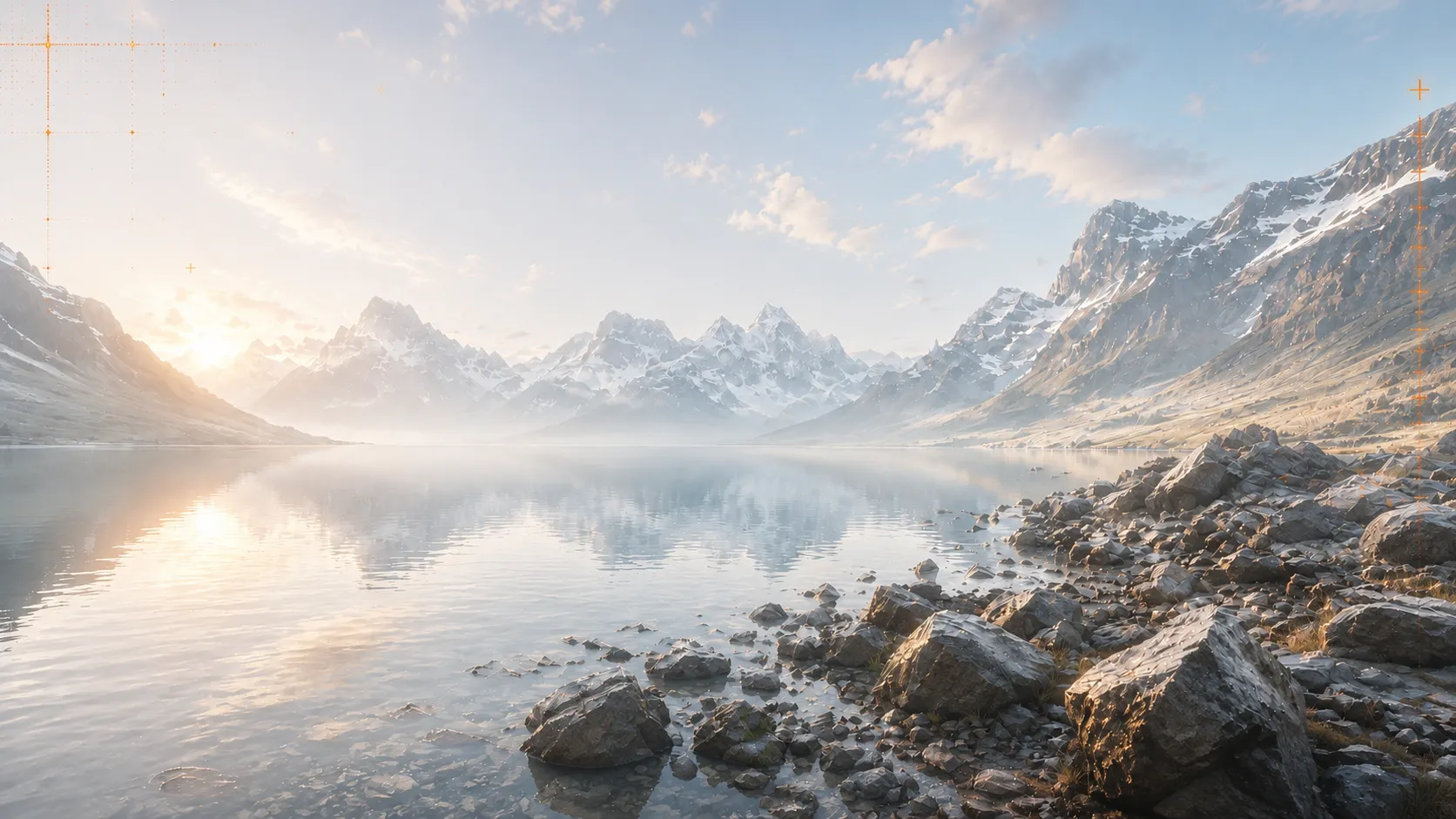
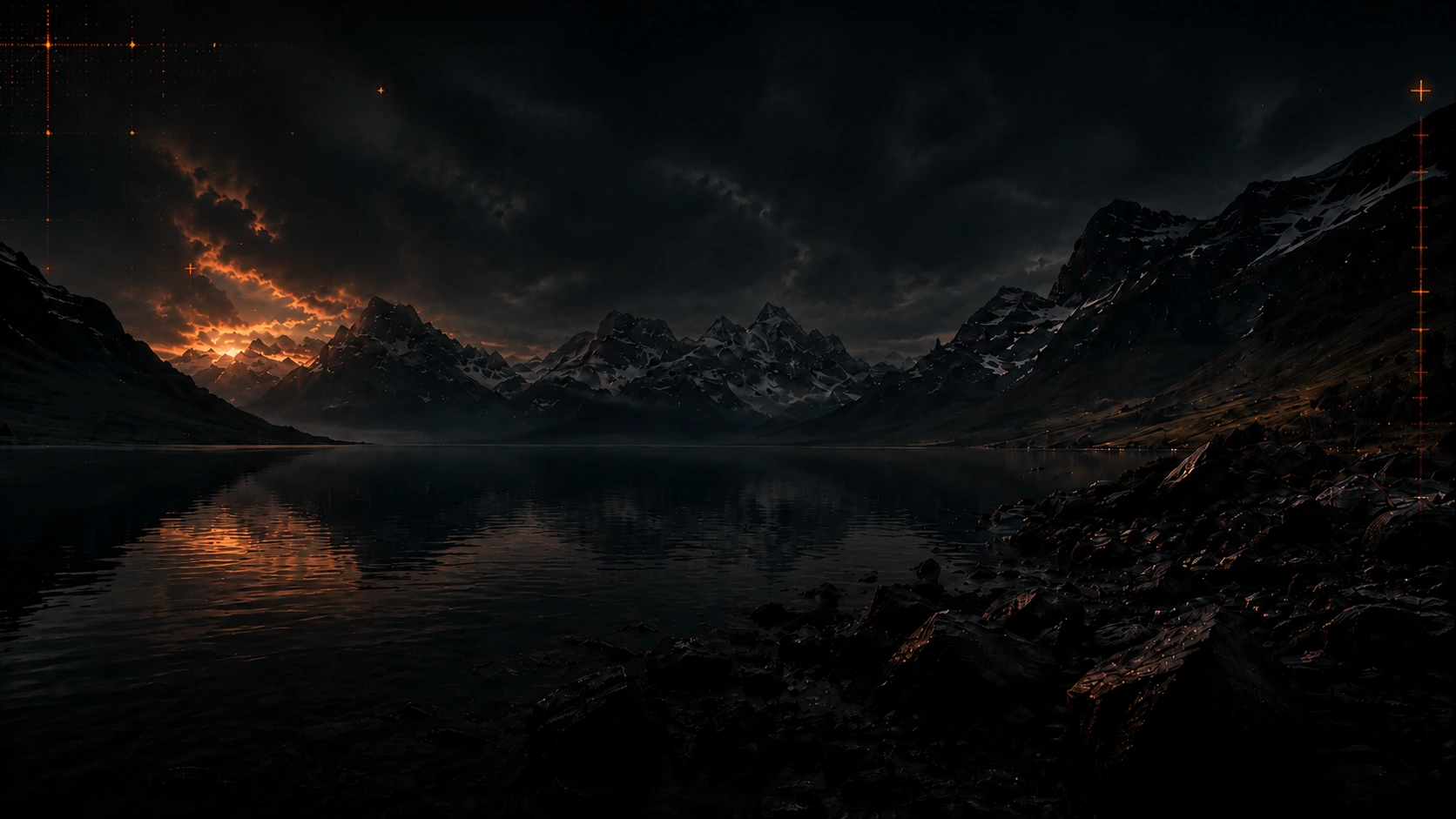
Photo to Video AI Generator - Start for Free
Turn any photo or image into an AI video online, PhotoToVideoAI is an image to video AI tool for adding natural motion, camera movement, and atmosphere to portraits, products, illustrations, landscapes, and social content.
 Photo to Video AI
IMAGE TO VIDEO AI EXAMPLES
What Can Your Image Become?
See how photo to video AI turns products, portraits, pets, memories, spaces, artwork, and more into short moving clips. Pick an example close to your photo, then try a similar motion prompt.
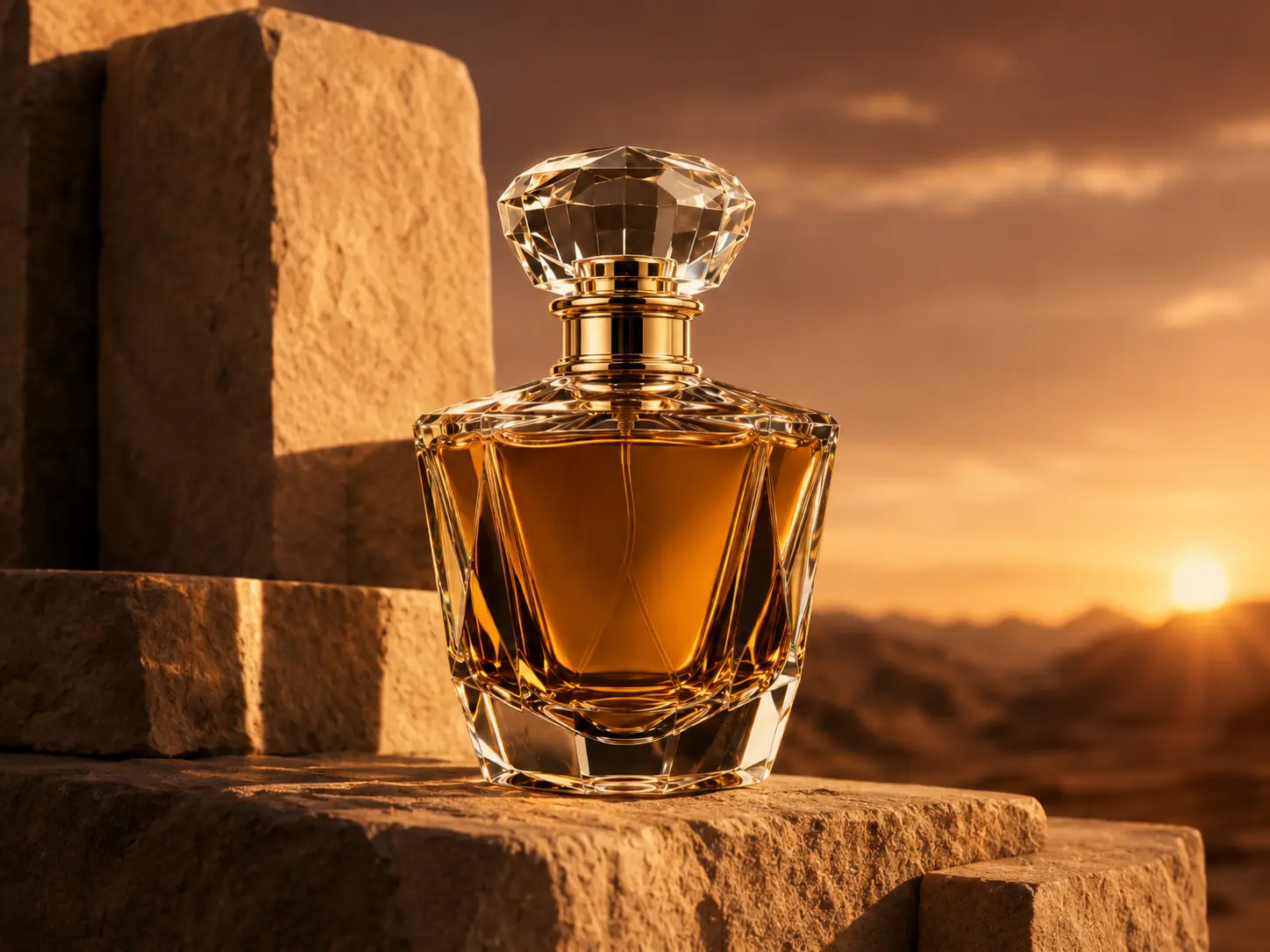 Original
Product Photo
Product rotation + light sweep
Turn one product image into an ad-ready reveal concept without arranging a video shoot.
Suggested prompt
Smooth product rotation with a clean light sweep across the surface, premium studio lighting, seamless loop.
What Is Photo to Video AI?
Turn one still image into a short moving clip with a focused motion prompt.
Photo to video AI interprets your subject and motion direction to create natural movement for creative drafts, social posts, product concepts, and visual stories. For more stable results, start with a clear image that has one focal subject.

Create Publish-Ready Videos with Photo to Video AI
Use our photo to video AI generator to turn one image into a high-quality video with natural motion, generated audio, up to 4K output, and watermark-free downloads.
Image to Video AI with Natural Motion
- Use photo to video AI to turn a portrait, product image, pet photo, artwork, landscape, or memory into a naturally moving clip.
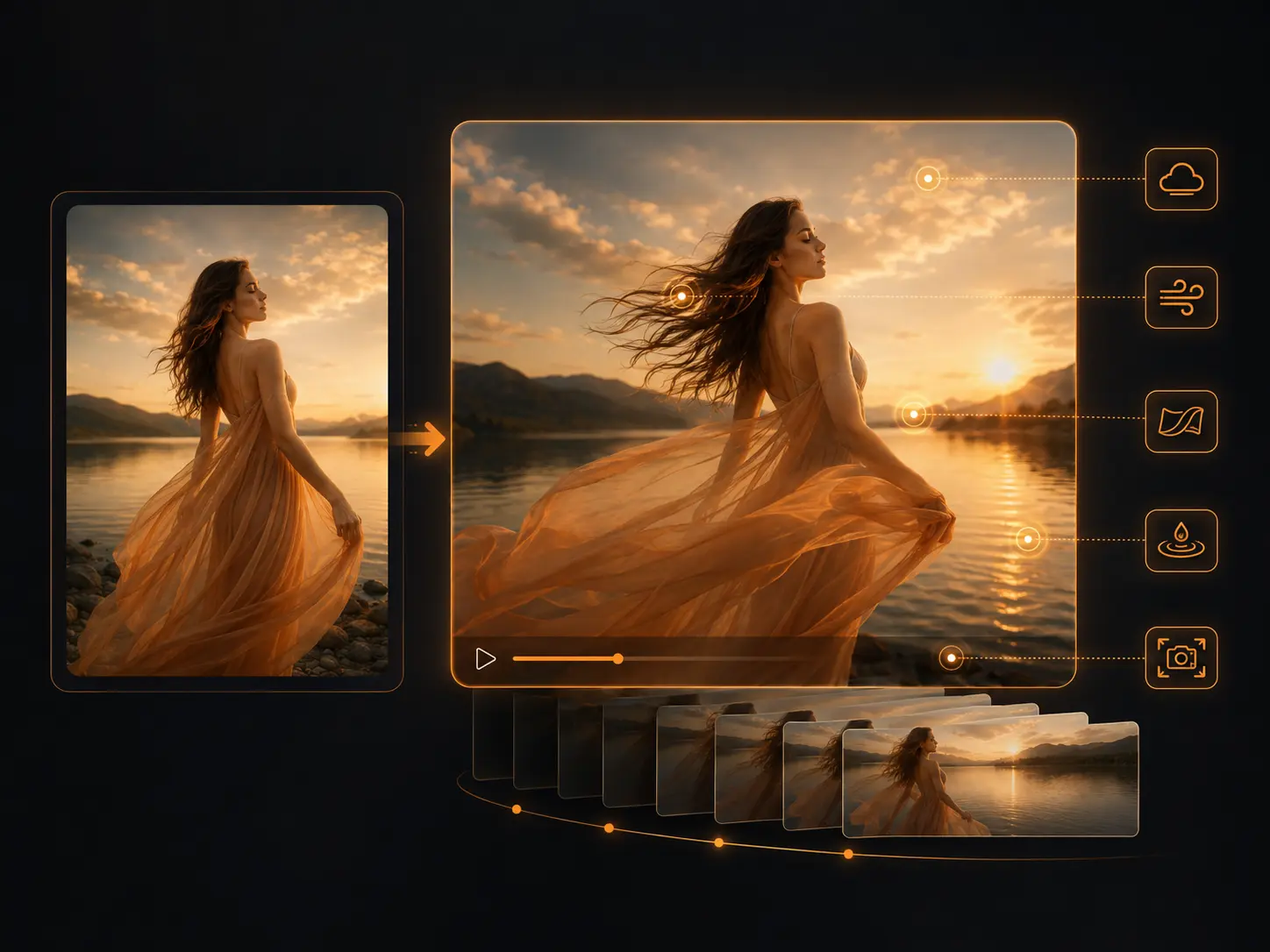
- Guide the camera with prompts for push-ins, pans, zooms, light shifts, hair movement, cloth motion, water, clouds, and other subtle details.
- Convert a photo to video with AI motion and cinematic camera direction, without filming new footage.
- Use one still image to create a cinematic short video without rebuilding assets or opening a complex editing timeline.
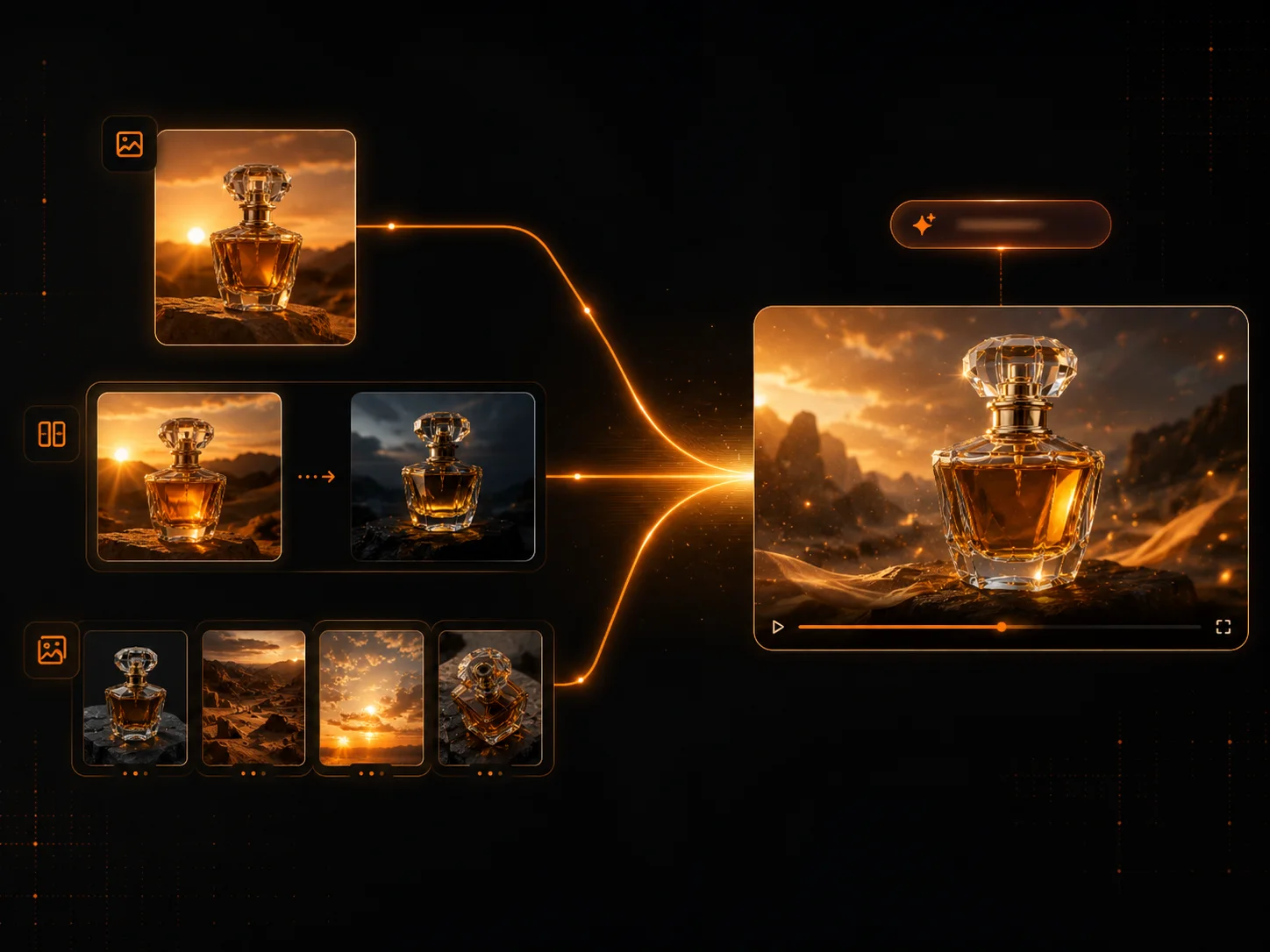
Flexible Image to Video AI Input Modes
- Start with one uploaded image when you want the picture to become the first frame, then use the prompt to describe the motion, camera direction, and scene changes.
- Use first-and-last-frame mode when you need more control over how the AI video begins and where it should end, with your uploaded start and end images guiding the result.
- Upload multiple reference images in parameter image mode to flexibly control subjects, products, style, environment, poses, or other details through the prompt.
- Choose the image input workflow that matches your project, from simple photo animation to guided transitions and multi-image creative direction.
AI Image to Video with Audio
- Generate an AI image to video with audio for a more complete viewing experience from one visual input.
- Add atmosphere, rhythm, and emotional context so your animated photo feels closer to a finished story clip than a silent preview.
- Reduce extra editing work when preparing short videos for social posts, promos, stories, and creative previews.
- Shape the generated audio around the scene mood, whether you need a social teaser, product reveal, story moment, or creative preview.

High-Quality Photo to Video AI in up to 4K
- Create high-quality image to video AI output for social content, promotional edits, portfolio work, and polished creative drafts.
- Preserve important visual details such as faces, product edges, illustration style, lighting, texture, and background composition while adding motion.
- Choose the resolution that fits your project, with photo to video AI support for up to 4K output on eligible generations.
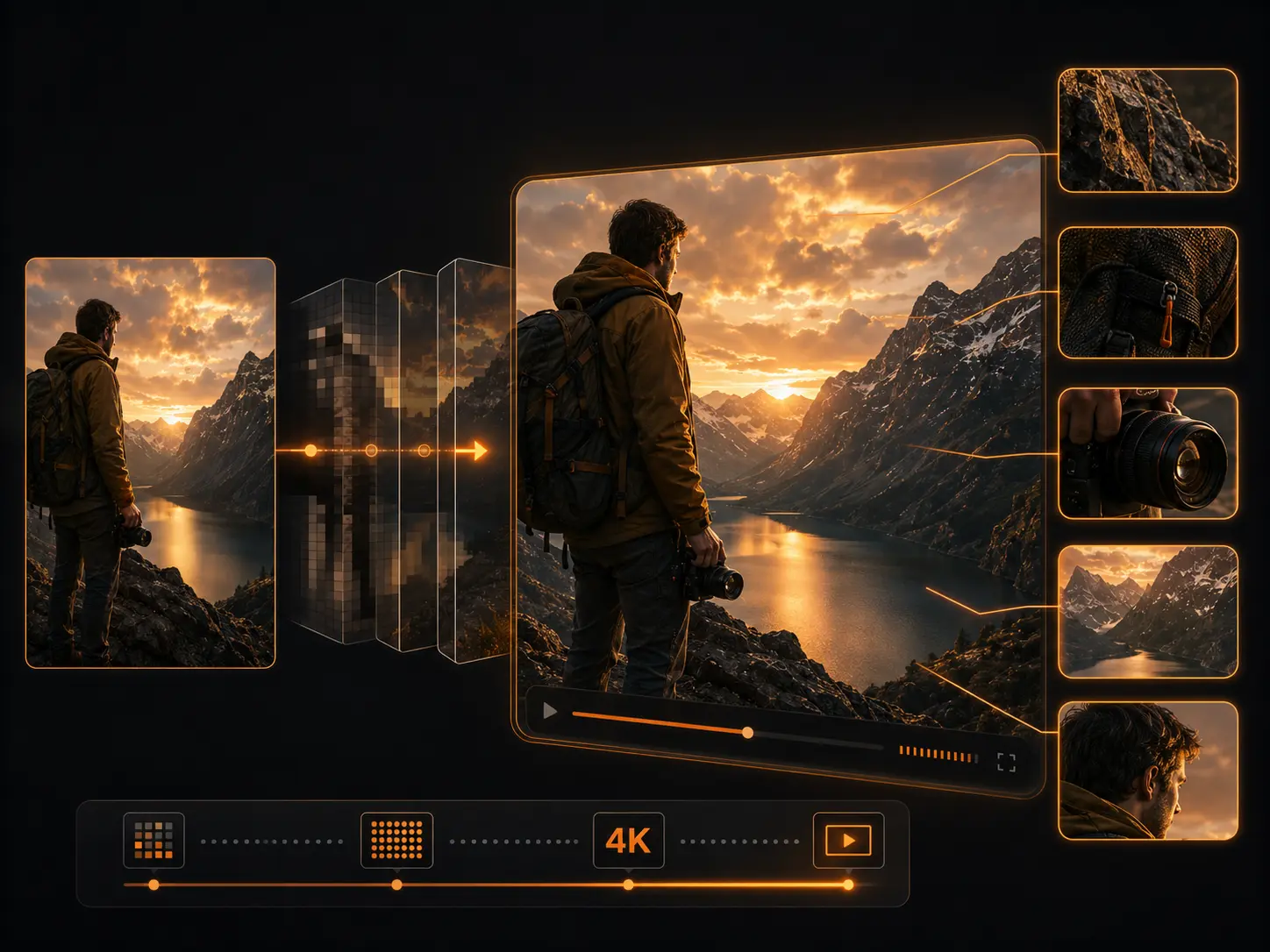
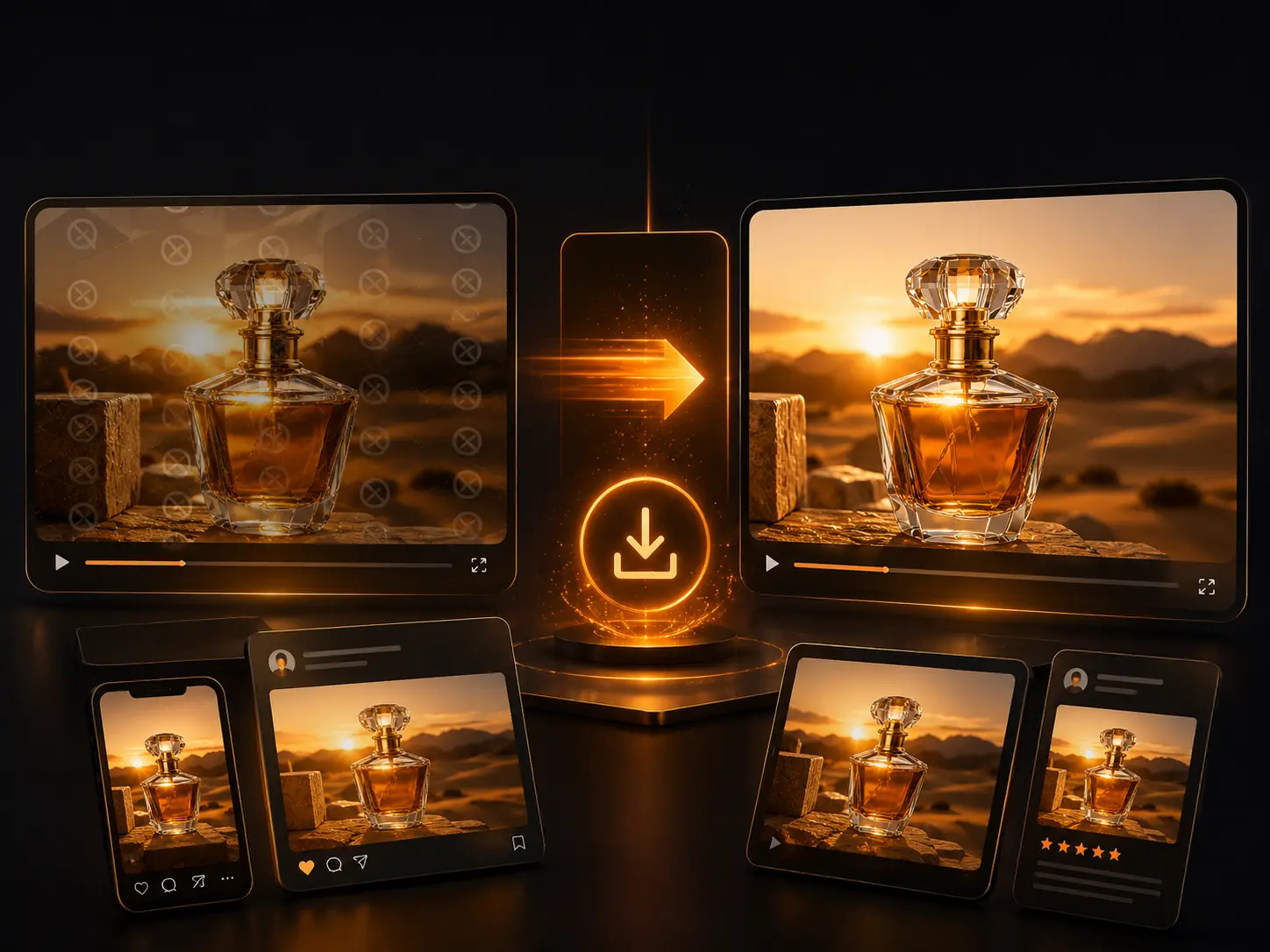
Image to Video AI Without Watermark Downloads
- Use image to video AI without watermark branding on the generated video, ready for sharing, editing, or publishing.
- Create cleaner results for personal memories, creator posts, product promotions, and client-facing visuals.
- Keep your final video focused on your subject and brand instead of platform marks, so it is easier to reuse across channels.
How to Convert a Photo to Video with AI
Use photo to video AI in four practical steps, from uploading one clear source image to describing motion, choosing the right model settings, and downloading a finished AI video for posts, ads, stories, or creative projects.
Upload an Image
Choose a portrait, product photo, pet, illustration, room, vehicle, food photo, or landscape with one obvious focal subject. A clear image gives the photo to video AI generator more visual detail to preserve, including faces, product edges, lighting, textures, and background context.
Describe the motion
Tell the photo to video AI generator what should move: blinking eyes, drifting clouds, rising steam, changing light, product rotation, or a camera push-in. Add the mood, camera direction, motion speed, and any details that should stay consistent so the generated video follows your creative intent.
Choose Your Model & Settings
Pick the right model for your task, Set your resolution, aspect ratio, and output format. Choose settings that match where the video will be used, whether you need a vertical social clip, a wide promo video, a polished portfolio draft, or high-quality output.
Generate and Download
Preview your video, then simplify your prompt if motion is too strong or details change. When the result looks right, download the AI generated video and use it directly in social posts, ads, stories, presentations, or your next editing workflow.
Best Starting Images for Photo to Video AI
Across official image-to-video guidance from Google Veo, Runway, Kling, and Sora/OpenAI, the same pattern appears: your image anchors the subject, composition, lighting, and style, while the motion prompt should focus on what moves. Use these best practices to get more predictable photo to video AI, AI photo to video, and image to video AI results.
What Official Image-to-Video Guides Agree On
The best image to video AI results usually come from a strong first frame and a focused motion prompt. These official guides describe the same practical workflow in different ways:
Use a strong source image
A clear subject, good lighting, and clean composition give the AI video generator from image input a stronger first frame to preserve.
Prompt for motion, not the whole image
Do not restate everything already visible. In image to video generation, use the prompt to describe movement, camera direction, timing, and what should stay consistent.

Keep short clips focused
Short AI video clips are easier to render when they focus on one scene, one main subject, and one clear motion direction.
Describe subject and movement clearly
For AI video from photo input, name the subject and specify the action, camera movement, direction, and timing.

Match the image to the target video
When the uploaded photo becomes the first frame, image quality, framing, and aspect ratio affect how well the generated clip preserves the original look.

Simple Rule for Better AI Video from Photo Results
“Use the image for what it already shows. Use the prompt for what should move.”
A good photo to video AI prompt usually includes:
- The main motion
blinking, breathing, rotating, drifting clouds, rising steam, flowing fabric, light sweep
- The camera motion
slow push-in, pan, orbit, dolly-in, close-up zoom
- The motion intensity
subtle, gentle, slow, cinematic, controlled
- The preserve instruction
keep the face, product shape, outfit, logo area, or original artwork style consistent
Instead of writing:
“Make this image look amazing.”
Write:
“Slow cinematic camera push-in, subtle background light movement, natural blinking, preserve the person’s face and expression.”
Or:
“Gentle product rotation, clean studio light sweep, keep the bottle centered, preserve the label area and product shape.”
Best Image Types and Motion Ideas For Photo to Video AI
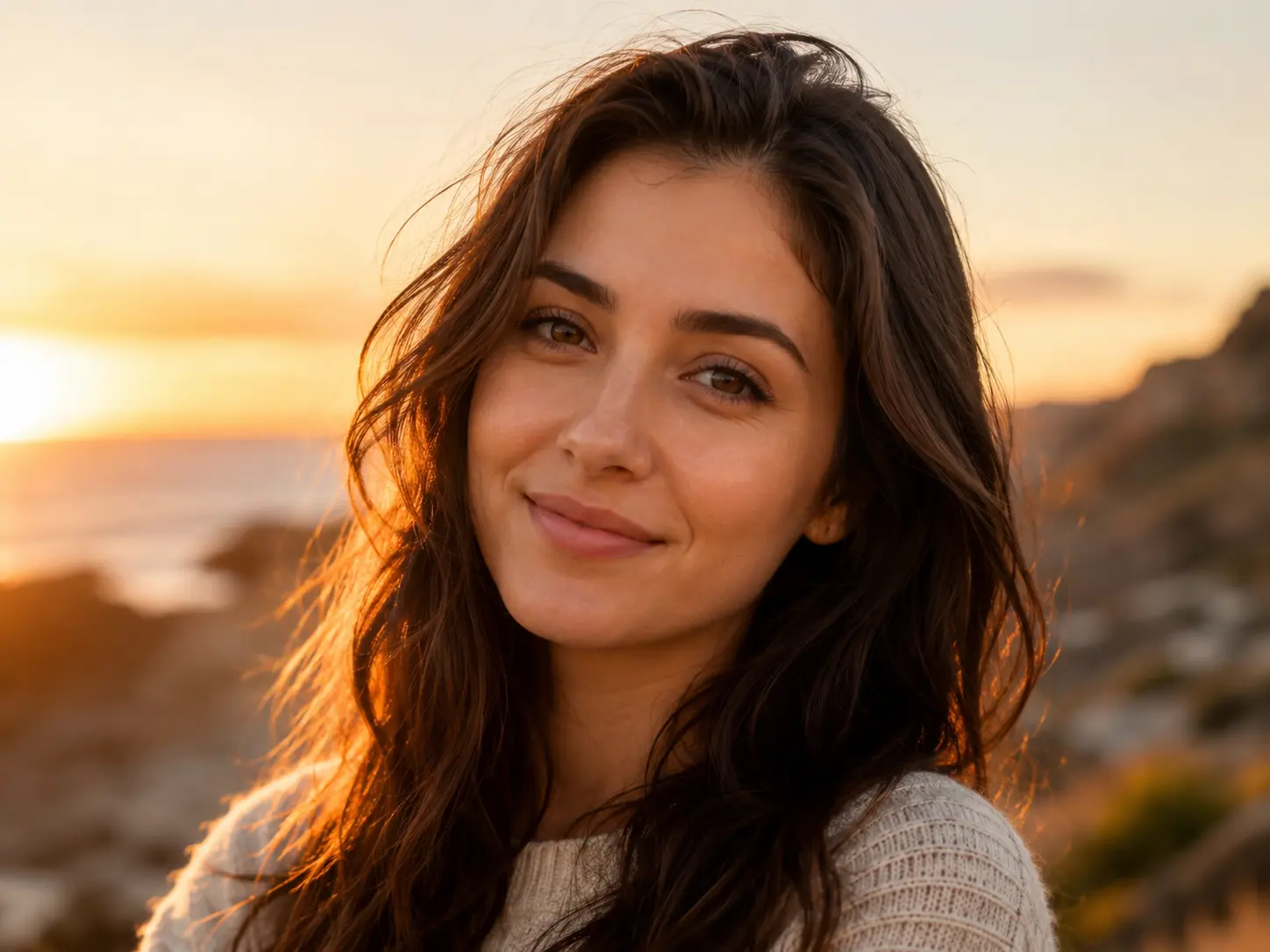
1 / 8
Image type
Portrait
Best starting image
one clear face, good lighting, face not cropped
Motion to try
natural blinking, subtle breathing, soft camera push-in
Watch carefully when
multiple faces, hands near the face, heavy shadows, strict identity preservation
Practical Prompt Formula For Photo to Video AI
Cinematic Portrait Video
Prompt: Natural blinking and subtle breathing, slow camera push-in, soft background light movement, preserve the face and expression.
Product Ad Video
Prompt: Slow product rotation, glossy light sweep, clean studio background, keep the product centered and preserve the label area.
Anime Motion Video
Prompt: Layered parallax depth, gentle hair and clothing movement, floating particles, preserve the original character design.
Landscape Video
Prompt: Clouds drifting slowly, light wind through trees, cinematic slow pan, preserve natural lighting and mountain shape.
Use Photo to Video AI for Work That Ships
Use an image to video AI generator to turn one source image into task-ready clips for launches, ads, social posts, listings, portfolios, and personal stories. Each workflow gives you a practical input rule, output use, prompt starter, and review note.
For e-commerce sellers, DTC brands, and lean marketing teams
Product Launch Videos
Turn one clean product photo into short launch clips for Shopify pages, product announcement posts, paid social tests, and email campaign banners. This photo to video AI workflow is best when you need motion before a full video shoot is ready.
Use it for
Best input
Use a sharp product image with one main item, clean edges, readable packaging, and simple background detail.
Prompt starter
Slow product rotation, glossy light sweep, subtle camera push-in, premium studio lighting, preserve package shape and label placement.
Watch out for
Review results carefully when exact logo text, legal packaging copy, or product dimensions must stay unchanged.
For growth teams, media buyers, and campaign designers
Ad Creative Testing
Use an AI video generator from image input to create multiple ad concepts from the same visual before buying production time. Test hooks like product rotation, cinematic push-in, lifestyle atmosphere, or background motion for TikTok, Reels, Shorts, and paid social.
Use it for
Best input
Start with one strong campaign visual, a clear subject, and enough empty space for motion without crowding the frame.
Prompt starter
Create a 5-second ad concept, strong opening motion, controlled camera push-in, subtle background movement, clean commercial lighting.
Watch out for
Treat generated ads as creative drafts first; review brand claims, product accuracy, and platform policy before publishing.
For creators, social media managers, and weekly content teams
Social Media Motion Posts
Use an AI video maker from photo input to turn portraits, travel photos, food images, artwork, and campaign graphics into short moving posts. It helps when you have strong images but not enough fresh video footage for every channel.
Use it for
Best input
Use photos with a clear focal point, readable composition, and motion that can stay subtle, such as blinking, steam, clouds, or a slow zoom.
Prompt starter
Subtle natural motion, gentle camera push-in, soft atmosphere, keep the subject recognizable, create a short social media loop.
Watch out for
Avoid asking for too many movements at once; restrained motion usually gives more stable image to video AI results.
For designers, illustrators, photographers, and creative directors
Portfolio & Concept Previews
Convert image to video AI previews for still artwork, campaign layouts, product mockups, or photography sets. Add parallax, atmosphere, light movement, or an editorial camera move so clients can feel the direction before final production.
Use it for
Best input
Use a polished visual with clear layers, stable composition, and details you want the AI image to video workflow to preserve.
Prompt starter
Layered parallax depth, slow cinematic zoom, soft ambient particles, gentle light movement, preserve the original artwork style.
Watch out for
Highly detailed typography, tiny UI text, and exact brand marks may need manual review after generation.
For real estate marketers, agents, and short-rental hosts
Real Estate Listing Clips
Turn an interior or exterior listing photo into a smooth preview clip with a slow walkthrough feel, gentle light movement, and stable room geometry. Use photo to video AI when a listing needs motion before a full property tour is available.
Use it for
Best input
Use bright, uncluttered rooms with straight architectural lines, visible depth, and no important tiny text in the scene.
Prompt starter
Slow forward dolly through the room, subtle sunlight shift, stable walls and furniture, premium real estate walkthrough feel.
Watch out for
Check generated room geometry before publishing, especially around mirrors, windows, stairs, and furniture edges.
For families, event creators, and personal storytelling projects
Memory & Story Clips
Make AI video from photo memories for birthday reels, anniversary clips, wedding moments, tribute videos, or personal story posts. The best results usually come from gentle motion that keeps faces, mood, and emotion natural.
Use it for
Best input
Use a clear portrait or group photo with good lighting, visible faces, and a simple request for restrained movement.
Prompt starter
Very subtle breathing, gentle smile motion, soft cinematic push-in, warm nostalgic light, preserve identity and expression.
Watch out for
Avoid dramatic facial changes for personal memories; review identity, expression, and emotional tone before sharing.
What Creators Say About Photo to Video AI
See how creators, marketers, and visual storytellers use photo to video AI to turn still images into publish-ready video content.
I used photo to video AI to turn a single product photo into a polished ad-style reveal. The motion made our creative feel far more premium without scheduling another shoot.
David Chen, E-commerce Marketer
David Chen
E-commerce Marketer
The portrait animation feels subtle and natural. I can create an AI video from photo input for reels instead of spending time filming every intro from scratch.
Rachel Kim, Content Creator
Rachel Kim
Content Creator
Having AI image to video with audio in one workflow is a major time saver. I can turn static campaign graphics into complete short clips much faster.
Marcus Thompson, Social Video Editor
Marcus Thompson
Social Video Editor
The up to 4K output and watermark-free download make a real difference. Our image to video AI results are clean enough to move into client-facing edits.
Sofia Garcia, Brand Designer
Sofia Garcia
Brand Designer
We use the photo to video AI generator to add gentle walkthrough motion to interior photos. It gives listings more presence before a full video shoot is available.
James Wilson, Property Marketing Lead
James Wilson
Property Marketing Lead
I can convert a photo to video with AI and give my still artwork layered motion and atmosphere. It is ideal for teasers and portfolio posts.
Anna Zhang, Illustrator
Anna Zhang
Illustrator
Photo to Video AI Frequently Asked Questions
Yes. PhotoToVideoAI provides free trial credits for eligible photo to video AI generations, so you can test it online first.
Yes. Image to video AI free trial credits let you try an eligible generation without signing up first; trial limits apply.
Paid users can use generated videos commercially, as long as they own or have permission to use the uploaded source image. Videos created with free trial credits are for testing only and cannot be used commercially. Always review outputs carefully before using them in ads, client work, product pages, or brand campaigns.
Yes. PhotoToVideoAI supports AI image to video with audio on eligible models and generations. Upload a photo, describe the motion and scene mood, then use audio-capable options when available to create a more complete short clip for social posts, product reveals, stories, or creative previews.
Yes. PhotoToVideoAI supports image to video AI without watermark downloads on eligible plans, models, or generations. Watermark-free output is useful when you need cleaner videos for social media, ads, client previews, product pages, or editing workflows.
Upload a clear photo, describe movement, and generate a short clip. Photo to video AI responds better to “slow camera push-in with gentle background motion” than “make it move.”
Photos with one clear subject and good lighting usually work best. A photo to video AI generator can animate portraits, products, illustrations, landscapes, and food images.
Yes. This photo to video AI tool is an AI video generator from image input: upload an image, add motion, and generate video.
Yes. Photo to video AI works for short product reveals and ad concepts; review any output that must keep exact package text or dimensions.
Turn Your Photo into Video with AI
Upload a photo, describe the motion you want, and generate a short AI video with natural movement, camera motion, and cinematic atmosphere.