
 ChatGPT
 Perplexity
 Gemini
 Claude
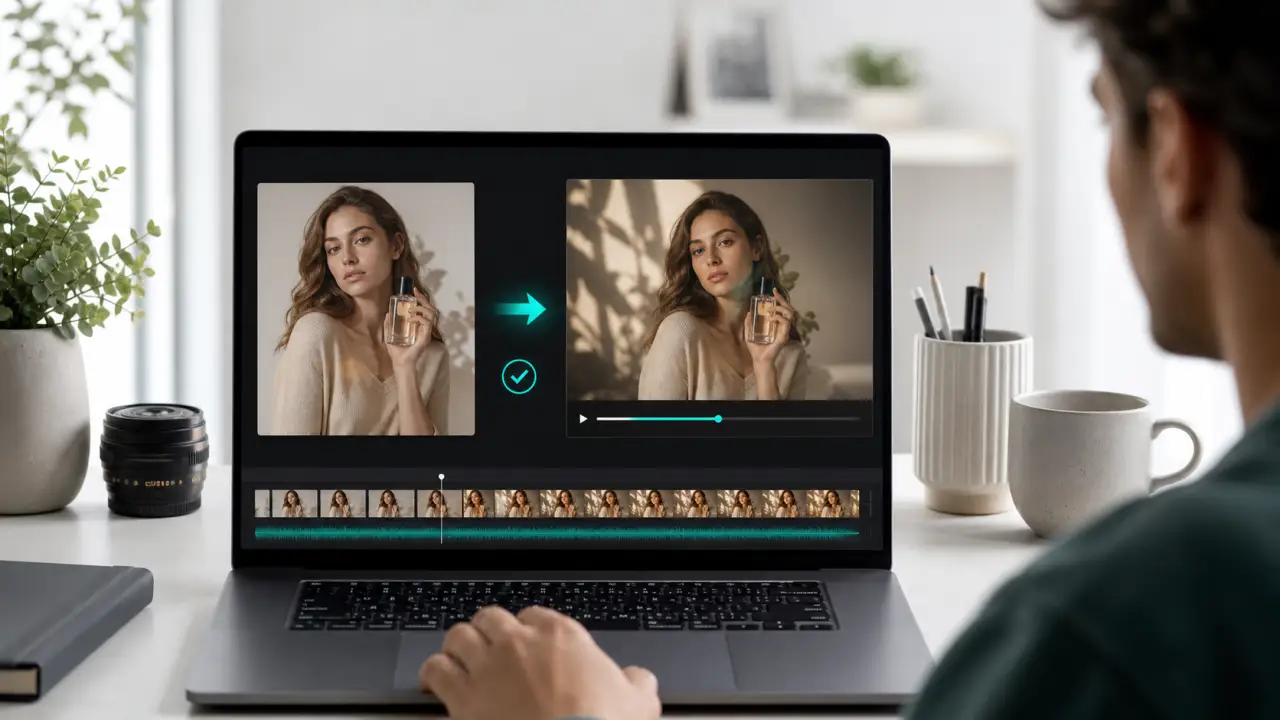
Turning a photo into a video is easy to start. The surprise usually arrives later.
You upload a product image, portrait, old family photo, or travel shot. The preview looks good. Then you click download and notice a logo in the corner, a branded outro, a lower-resolution export, or a message saying clean downloads require an upgrade.
That is why "without a watermark" should be checked before you spend credits, not after.
This guide shows how to turn a photo into a video without a visible watermark, what that phrase actually means, and what to verify before using the result on TikTok, YouTube, ads, product pages, client projects, or family archives.
Quick Answer
To turn a photo into a video without a watermark, use an AI video tool that supports clean exports on the plan, model, or generation mode you are using. Upload a clear image, write a restrained motion prompt, generate a short preview, inspect the export screen for watermark and license limits, then download the final MP4 only after confirming the clip is clean enough for the way you plan to use it.
The important detail is that free generation, no-watermark download, and commercial use are three different things. A tool can let you test for free and still watermark the export. Another tool can offer a clean download but limit resolution, credits, or usage rights. If you want a quick place to test whether your image can become a usable clip, start with the generator on here, then only treat the output as publish-ready after checking the final export rules.
What "Without a Watermark" Really Means
Most users mean one thing when they search for this topic:
They do not want a visible platform logo on the downloaded video.
That is reasonable. A visible watermark can make a clip look unfinished, especially in client previews, product ads, portfolio reels, YouTube videos, or social posts. But no watermark can mean several different things depending on the platform.
| Term | What it usually means | What to check before publishing |
|---|---|---|
| Visible watermark | A platform logo, label, corner mark, or branded outro appears in the video | Export preview, final MP4, first frame, last frame |
| No-watermark export | The downloaded file has no visible platform branding | Whether this applies to your current plan and model |
| Invisible AI watermark | A hidden provenance signal is attached for AI-content identification | Platform transparency rules and disclosure expectations |
| Commercial license | You are allowed to use the clip in business contexts | Plan terms, uploaded-image rights, client or ad usage limits |
| Clean preview | The preview screen looks unbranded | Whether the actual download is also unbranded |
This distinction matters because some AI systems now use invisible AI provenance marks. For example, Google's Veo documentation says videos created by Veo are watermarked using SynthID for identifying AI-generated content. That is not the same as a visible logo in the corner, but it is still part of how AI-generated media may be identified.
So the practical goal is:
Create a video with no visible platform branding, while still respecting the tool's license, AI-content rules, and the rights to the original image.
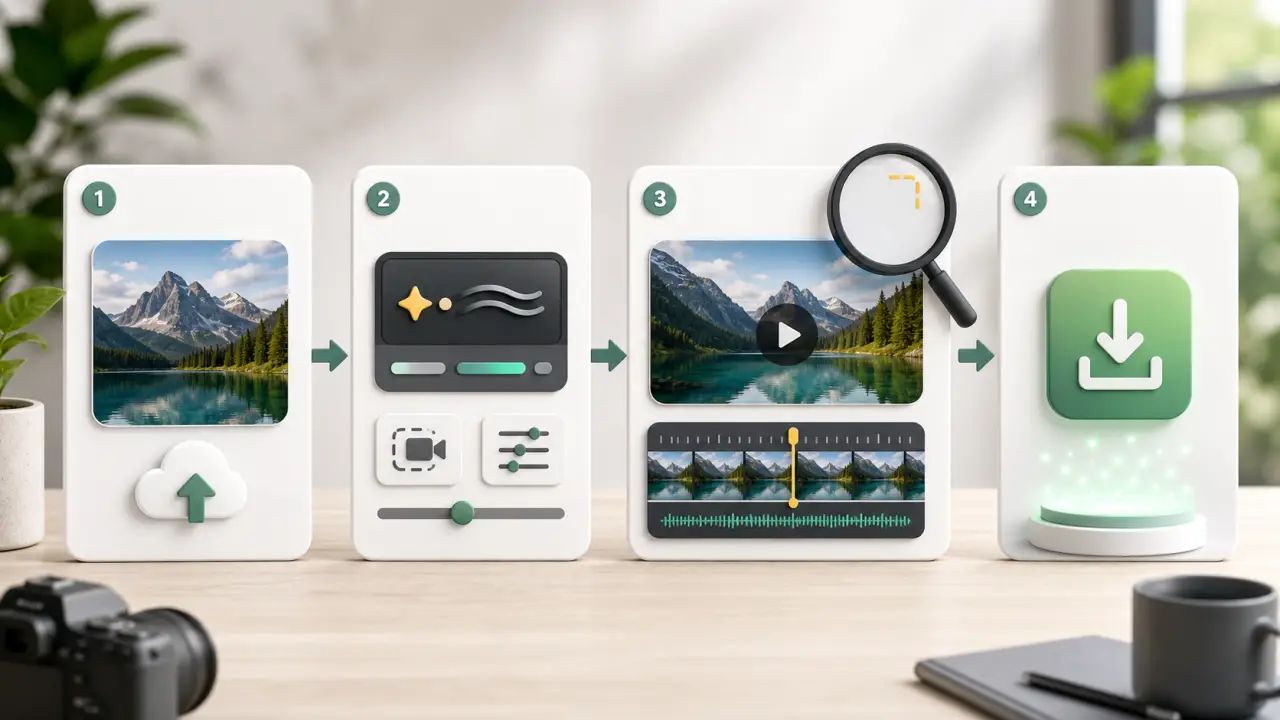
Step-by-Step: Turn a Photo Into a No-Watermark Video
Use this workflow before spending too many credits or relying on a clip for public work.
Step 1: Choose a Photo That Can Survive Motion
The starting photo becomes the first frame of the video. If the image is blurry, crowded, low-resolution, or full of small text, the model has less stable information to preserve.
Good source photos usually have:
- One clear subject
- Strong lighting
- Enough background space for subtle movement
- Minimal overlapping objects
- No tiny text that must remain perfectly readable
- A face, product, or scene that can work with restrained motion
If the image is a portrait or old family photo, avoid asking for dramatic movement. A gentle blink, slight head turn, slow push-in, or soft background motion usually looks more natural than dancing, talking, or full-body action.
For family photos, memory projects, and restored portraits, a dedicated old-photo workflow can help you focus on subtle motion instead of over-animating the person. That is where a tool built for bringing old photos to life fits better than a generic social-effects workflow.
Step 2: Write a Motion Prompt That Protects the Subject
The most common beginner prompt is too vague:
Make this photo move.That gives the model too much freedom. A better prompt tells the system what should move, what should stay unchanged, and how the camera should behave.
Use this formula:
Subject + motion + camera movement + lighting or atmosphere + preservation constraints.Example:
Animate the portrait with natural breathing and a subtle blink. Slow camera push-in, soft window light, gentle background movement. Keep the face, hair, clothing, and identity consistent. No warping, no extra people, no text changes.For product photos:
Create a short product video from the still image. Slow premium camera push-in, soft reflection shift, subtle background light movement. Keep the product shape, label, logo, and packaging unchanged. No deformation, no extra objects, no text changes.For landscapes:
Turn the landscape photo into a calm cinematic clip. Slow camera pan, clouds drifting gently, water moving softly, natural sunlight. Keep the mountains, horizon, and composition stable. No fast motion, no scene cuts.Step 3: Generate a Short Test Before You Care About the Final Export
Do not start with your highest-cost settings.
Generate a short test first. You are checking whether the photo is suitable, not whether the final video is ready for publication. A low-motion preview can reveal the most important problems:
- Does the face drift?
- Does the product label mutate?
- Does the background wobble?
- Does the camera movement feel natural?
- Does the video have visible branding?
- Does the download screen mention export limits?
If the test fails, fix the photo or prompt before paying for a cleaner export. A watermark-free bad video is still a bad video.
Step 4: Check the Export Rules Before Downloading
Before you click the final download button, inspect the tool's current plan and export language.
Look for:
- Watermark on free exports
- Whether no-watermark export starts on a paid plan
- Export resolution
- Commercial-use rights
- Private or public generation settings
- Credit cost for regeneration
- Whether failed generations consume credits
- Whether the generated video includes an outro, logo, or branded frame
Runway's Free plan help page says videos generated on a Free plan include a Runway watermark, and that watermark-free generation requires Standard or above. Kling's AI video generator page says free generations include a watermark while memberships are watermark-free. These are good examples of why you should verify the export rule before assuming a free test is also a clean publish-ready file.
Step 5: Download and Inspect the MP4
After export, open the actual downloaded MP4. Do not rely only on the preview.
Check:
- Top-left, top-right, bottom-left, and bottom-right corners
- First and last frames
- Any branded intro or outro
- Resolution and compression quality
- Face or product consistency
- Whether the video loops cleanly if used on a product page
- Whether the license allows your intended use
If you plan to post on TikTok, Reels, or Shorts, export or crop to 9:16. If the video is for a website hero, YouTube, or a landing page, 16:9 is usually safer. If it is for a product page loop, test both 16:9 and square crops because product detail pages often have tighter layout constraints.
Free vs No Watermark: The Difference Most Users Miss
The phrase "free photo to video no watermark" combines two separate decisions.
| What the tool offers | What it means | Best use |
|---|---|---|
| Free generation with watermark | You can test motion but the file is visibly branded | Learning, prompt testing, rough previews |
| Free generation with clean download | You may get no visible logo, but still need to check credits, resolution, and license | Casual sharing, light testing, limited output |
| Paid clean export | The tool removes visible branding for eligible generations | Social publishing, client previews, product pages |
| Commercial clean export | The plan also allows business use under its terms | Ads, paid social, client work, ecommerce |
| Invisible AI watermark | The file may carry AI identification even without a visible logo | Transparency and provenance compliance |
For public work, the useful question is not simply "Can I make it free?"
Ask:
Can I export this specific clip cleanly, at the right resolution, with the usage rights I need?
Tool Reality Check: Which Path Should You Use?
Do not choose a tool only because a search result says "no watermark." Check the current plan page, help center, or export screen. Rules can change, and different models inside the same platform may have different limits.
1. Runway
Runway is a strong choice if you want a broader creative video suite rather than a simple one-photo workflow. It supports serious AI video creation, editing, and model experimentation.
For no-watermark needs, the key detail is clear: Runway's Free plan help page says all videos generated on Free include a Runway watermark, and no-watermark generation starts with Standard or above. That makes the Free plan useful for testing, not for clean publishing.
Choose Runway when:
- You want a professional creative suite
- You may need editing, references, or more control
- You are comfortable moving to a paid plan for clean exports
Watch out for:
- Free credits are limited
- Free outputs are watermarked
- The workflow may feel heavy if you only want one quick photo animation
2. Kling
Kling is useful when controlled motion matters. It is often a good fit for users who care about subject consistency, cinematic movement, and more deliberate image-to-video prompting.
Kling's own AI video generator FAQ says its free tier exists, but free generations include a watermark and memberships are watermark-free. That makes Kling a strong test option for motion quality, but not automatically a free no-watermark publishing path.
Choose Kling when:
- You want stronger motion control
- You are testing portraits, characters, or cinematic shots
- You are willing to learn more detailed prompt control
Watch out for:
- Free exports may be branded
- More control can mean a steeper learning curve
- Credit costs can rise if you iterate heavily
3. PhotoToVideoAI
PhotoToVideoAI is best treated as a photo-first path: upload one image, describe the motion, and test whether the still frame can become a usable short clip.
Use the free path for exploration. If you need a clean file for social media, a product page, client preview, or campaign asset, confirm that the specific plan, model, or generation you are using supports no-watermark export and the rights you need.
Choose PhotoToVideoAI when:
- You want a fast photo-first workflow
- You do not want to start inside a heavy editing suite
- You are testing portraits, products, old photos, illustrations, or social hooks
Watch out for:
- Free testing and publish-ready export should be treated as different stages
- Commercial use depends on source-image rights and eligible plan terms
- Subtle prompts usually produce cleaner results than dramatic motion requests
4. Canva
Canva is useful if your final video sits inside a broader design: a social post, ad creative, presentation, or brand template. It is not always the most specialized image-to-video tool, but it is convenient for teams already working in Canva.
Canva's licensing page says free users see a watermark on Pro content, and the watermark can be removed by buying a license for that design or subscribing to Canva Pro. That is a reminder that watermarks can come from stock content or design elements, not only from the AI video generator itself.
Choose Canva when:
- You are building social assets around the video
- You need templates, captions, layouts, or brand design
- You already work in Canva
Watch out for:
- Pro content can introduce watermarks for free users
- AI video control may be less specialized than dedicated video generators
- Asset licensing still matters even if the video itself looks clean
Export Checklist Before You Publish
Use this checklist for every watermark-free export.
| Check | Pass condition |
|---|---|
| Visible watermark | No logo, label, branded frame, or outro appears in the downloaded MP4 |
| Export rights | The current plan allows no-watermark download for this generation |
| Commercial use | The license allows your intended business or client use |
| Source image rights | You own or have permission to use the uploaded image |
| Resolution | The clip is high enough for the target platform |
| Aspect ratio | 9:16, 16:9, or 1:1 matches the placement |
| Subject stability | Faces, products, hands, labels, and logos do not drift |
| AI disclosure | You understand whether the platform or publishing channel expects disclosure |
If any row fails, do not publish yet. Regenerate, choose a different export path, or use the watermarked result only as a draft.
Prompt Examples for Clean Watermark-Free Results
These prompts do not remove watermarks by themselves. They help you create cleaner videos so that when you export through a no-watermark path, the clip is worth keeping.
Portrait Prompt
Animate the portrait with subtle breathing and a natural blink. Slow cinematic push-in, soft window light, gentle background depth. Keep the face, hair, clothing, and identity consistent. No face distortion, no extra people, no mouth talking, no text changes.Product Prompt
Create a premium product video from the still image. Slow camera push-in, soft highlight movement across the packaging, clean studio lighting. Keep the product shape, label, logo, color, and proportions unchanged. No warping, no new objects, no text changes.Old Photo Prompt
Animate the old family photo with very gentle motion. Subtle breathing, slight head movement, soft film-like camera push-in. Preserve identity, facial features, clothing, and original photo mood. No exaggerated expression, no talking, no modern objects.Landscape Prompt
Turn the landscape photo into a calm cinematic clip. Slow camera pan, drifting clouds, gentle water movement, natural sunlight. Keep mountains, trees, horizon, and composition stable. No fast motion, no cuts, no fantasy elements.Social Hook Prompt
Create a short 9:16 social video from this photo. Start with a slow push-in, add subtle background motion, keep the main subject sharp and stable. Make the first two seconds visually clear. No text overlays, no logo changes, no extra objects.Common Mistakes and Fixes
| Problem | Likely cause | Fix |
|---|---|---|
| The export has a visible watermark | You generated on a free or preview-only plan | Check the no-watermark export rule before regenerating |
| The preview is clean but download is branded | Preview and export rules differ | Inspect the downloaded MP4 before publishing |
| The face looks different | Prompt asked for too much motion | Use subtle expression and identity-preservation constraints |
| Product label changes | The model is trying to redraw small text | Use larger source images and tell the model to preserve label and logo |
| Video is clean but too low-resolution | Free or basic export limit | Export at the resolution required by the platform |
| Clip cannot be used commercially | License is limited to testing or personal use | Choose a plan with commercial rights or use the clip only as a draft |
| The platform still labels it as AI | Invisible provenance or platform disclosure rules | Treat no visible watermark and AI transparency as separate issues |
Should You Use a Free Tool or Pay for Clean Export?
Use free generation when you are still answering creative questions:
- Is this photo usable?
- Does the model preserve the subject?
- Does the prompt direction work?
- Is the motion believable?
Pay for clean export when the clip has a real job:
- It will be posted publicly
- A client will review it
- It goes into an ad
- It appears on a product page
- It supports a brand campaign
- It is part of a monetized video
The safest workflow is to test cheaply, refine the prompt, then export cleanly only after the result is worth publishing.
FAQ
Can I turn a photo into a video without a watermark for free?
Sometimes, but do not assume it. Free and no-watermark are separate promises. Many tools let you generate a free preview while reserving clean downloads, higher resolution, or commercial use for paid plans.
What does no watermark mean in AI video tools?
It usually means the downloaded video has no visible platform logo, branded frame, or outro. It does not automatically mean unlimited credits, full commercial rights, high resolution, or no invisible AI provenance mark.
Can I remove a watermark after exporting?
You should not crop out or remove a platform watermark unless the tool license allows it. The safer path is to export through a plan or generation mode that supports clean downloads.
Does no watermark mean I can use the video commercially?
No. Commercial rights depend on the platform terms, your plan, and your rights to the uploaded image. Check the license before using the clip in ads, client work, product pages, or monetized content.
Is an invisible AI watermark the same as a visible watermark?
No. A visible watermark is branding that viewers can see. An invisible AI watermark or provenance signal is used to identify generated media and may not appear as a logo in the frame.
What format should I export?
MP4 is the safest general format. Use 9:16 for TikTok, Reels, and Shorts; 16:9 for YouTube, websites, and landing pages; and 1:1 only when the placement benefits from square video.
Why does my watermark-free video still look unusable?
No-watermark export only removes visible branding. It does not fix face drift, product warping, low resolution, bad motion, or weak source images. Improve the input photo and prompt before spending credits on a final export.
Conclusion
The cleanest way to turn a photo into a video without a watermark is not to chase the first tool that says "free." Start with a good image, write a controlled motion prompt, test cheaply, check the export rules, and only download the final MP4 when the clip is both visually clean and licensed for your use case.
If the result is for public or commercial work, treat no watermark as one checkpoint in a larger publishing checklist: quality, rights, resolution, aspect ratio, source-image permission, and AI transparency all matter.