
 ChatGPT
 Perplexity
 Gemini
 Claude
Veo 3.1 Lite makes Google's image-to-video workflow less expensive, but a cheaper model does not make every generation a cheap experiment.
If you start with an 8-second 1080p clip, dramatic subject movement, a complicated camera path, dialogue, music, and several visual changes, you still will not know which instruction caused the result to fail. A better beginner workflow is deliberately small: one clear image, one visible action, one camera move, one audio layer, and the shortest useful test.
This guide shows exactly how to create that first Veo 3.1 Lite image-to-video clip, then improve it without wasting iterations.
Quick Answer
Veo 3.1 Lite is Google's most cost-efficient Veo 3.1 video model for rapid iteration and high-volume applications. It can animate an initial image into a 4-, 6-, or 8-second video with native audio. Google's current Gemini API specifications list 16:9 and 9:16 output, 24 fps, 720p, and 1080p for 8-second generations. Native 4K, separate reference-image guidance, and video extension are not available on Lite.
For your first result, upload a clean image, choose 4 seconds and 720p, match the aspect ratio to the final channel, then write a prompt with one subject action, one camera movement, one visual atmosphere, one audio direction, and a short preservation constraint. If you want to follow this workflow without setting up the Gemini API, you can try it with your own image in the PhotoToVideoAI generator.
The guiding rule is simple: prove the motion at low cost before paying for more seconds or resolution.
What Is Veo 3.1 Lite Image to Video?
Veo 3.1 Lite is part of Google's Veo 3 family. The official Veo 3.1 Lite model card describes it as a system that creates high-quality video with audio from either a text prompt or an input image. Google launched the preview model on March 31, 2026 and positioned it as the most cost-efficient Veo option for rapid iteration and applications that generate video at scale.
In image-to-video mode, the uploaded image supplies the starting visual information: the subject, framing, colors, lighting, materials, and scene layout. Your text prompt should spend most of its effort on what changes over time.
That makes Veo 3.1 Lite useful for:
- Turning a product photo into a short ad concept
- Adding subtle motion and ambience to a portrait
- Creating a vertical visual hook from an illustration
- Animating clouds, water, light, smoke, or foliage in a landscape
- Testing first-and-last-frame transitions before using a more expensive workflow
- Producing several motion variations when cost matters more than the full Veo feature set
Lite is not simply “Veo 3.1 at a lower resolution.” It is a distinct model variant with its own feature boundary. It supports image-to-video and first-and-last-frame generation, but it does not support the Gemini API's separate referenceImages input or Veo video extension. Google also limits native Lite output to 720p and 1080p.
What You Need Before Starting
You do not need filmmaking experience, but you do need a workable first frame and a clear idea of what the next few seconds should contain.
A clean source image
Use an image with one obvious subject, readable edges, and enough surrounding space for the requested movement. A tightly cropped face gives the model little room for a pan. A flat product packshot does not contain enough hidden geometry for a convincing full 360-degree orbit. Tiny hands, labels, jewelry, and facial details are more likely to change when the requested action is large.
Whenever possible, prepare the image in the same orientation as the final video:
- Use 9:16 for TikTok, Reels, and Shorts
- Use 16:9 for YouTube, landing pages, presentations, and widescreen ads
- Leave visual space in the direction the subject or camera will move
One short shot plan
Write down four decisions before opening the generator:
- What moves?
- How does the camera move?
- What should the viewer hear?
- What must remain unchanged?
If you cannot answer those four questions in one sentence each, the first generation is probably trying to do too much.
A testing budget
AI video is iterative. Plan for at least two or three short tests instead of spending the whole budget on one long, high-resolution attempt. The first clip tests motion. The second corrects the largest problem. The third can increase quality or duration if the shot is already stable.
Step-by-Step Veo 3.1 Lite Workflow
The screenshots below show the production PhotoToVideoAI interface. Labels and credit costs can change as model integrations are updated, so treat the live generator as the final source for platform-specific settings.
Step 1: Select Image to Video
Open the generator and choose Image to Video. This mode uses the uploaded picture as the starting visual instead of asking the model to invent the entire scene from text.
Do not choose a reference-image workflow just because it sounds more powerful. Veo 3.1 Lite's native Gemini API does not support the separate multi-reference-image feature available on the fuller Veo 3.1 variants.
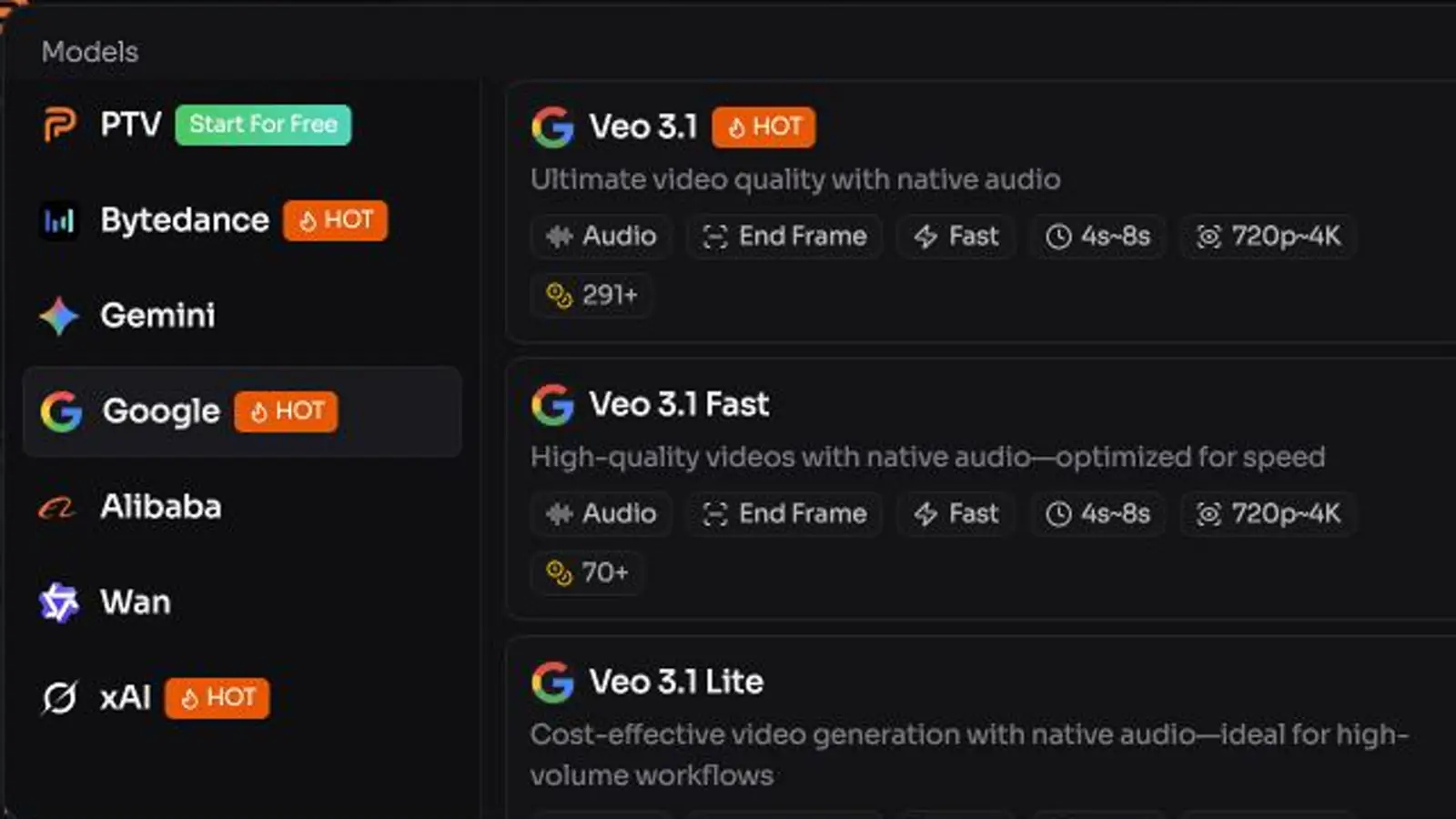
Step 2: Switch to Veo 3.1 Lite
Open the model selector, choose the Google group, and select Veo 3.1 Lite. The model card identifies it as the cost-effective option with native audio, designed for higher-volume workflows.
This choice is best when you expect to test several prompts or images. If the job later requires native 4K, multiple reference images, or video extension, move the proven shot to Veo 3.1 Fast or Standard instead of starting there.
Step 3: Upload one strong image
Upload one image for the first test. Even if the interface accepts more files, a single starting image is easier to diagnose and matches the core image-to-video workflow.
Check the image at full size before continuing:
- Is the main subject sharp?
- Are the face, hands, product edges, or important details visible?
- Does the crop match the target aspect ratio?
- Is there space for the requested camera movement?
- Do you have the right to upload and animate the image?
Step 4: Write a motion-and-audio prompt
Describe what happens after the uploaded frame. Do not spend half the prompt redescribing colors, clothing, and objects that are already clear in the image.
Use this order:
[Shot and subject action].
Camera: [one movement, direction, and speed].
Environment: [one or two background motions].
Lighting and style: [visual treatment].
Audio: [ambience, sound effect, dialogue, or no music].
Preserve: [identity, product shape, label area, composition, or art style].
One continuous shot, no cuts.
Google's official Veo prompt guide recommends defining framing and camera movement, style, lighting, characters, location, action, dialogue, and sound. You do not need every category in every prompt. Include only the details that affect this specific shot.
Step 5: Choose safe first settings
Start with:
- Duration: 4 seconds
- Resolution: 720p
- Aspect ratio: 16:9 or 9:16, matching the source image and destination
- Seed: keep the value if you want slightly more comparable reruns, but do not expect identical output
Google notes that a seed can improve consistency slightly but does not guarantee deterministic video. The most reliable comparison still comes from keeping the image and settings fixed while changing only one prompt instruction.
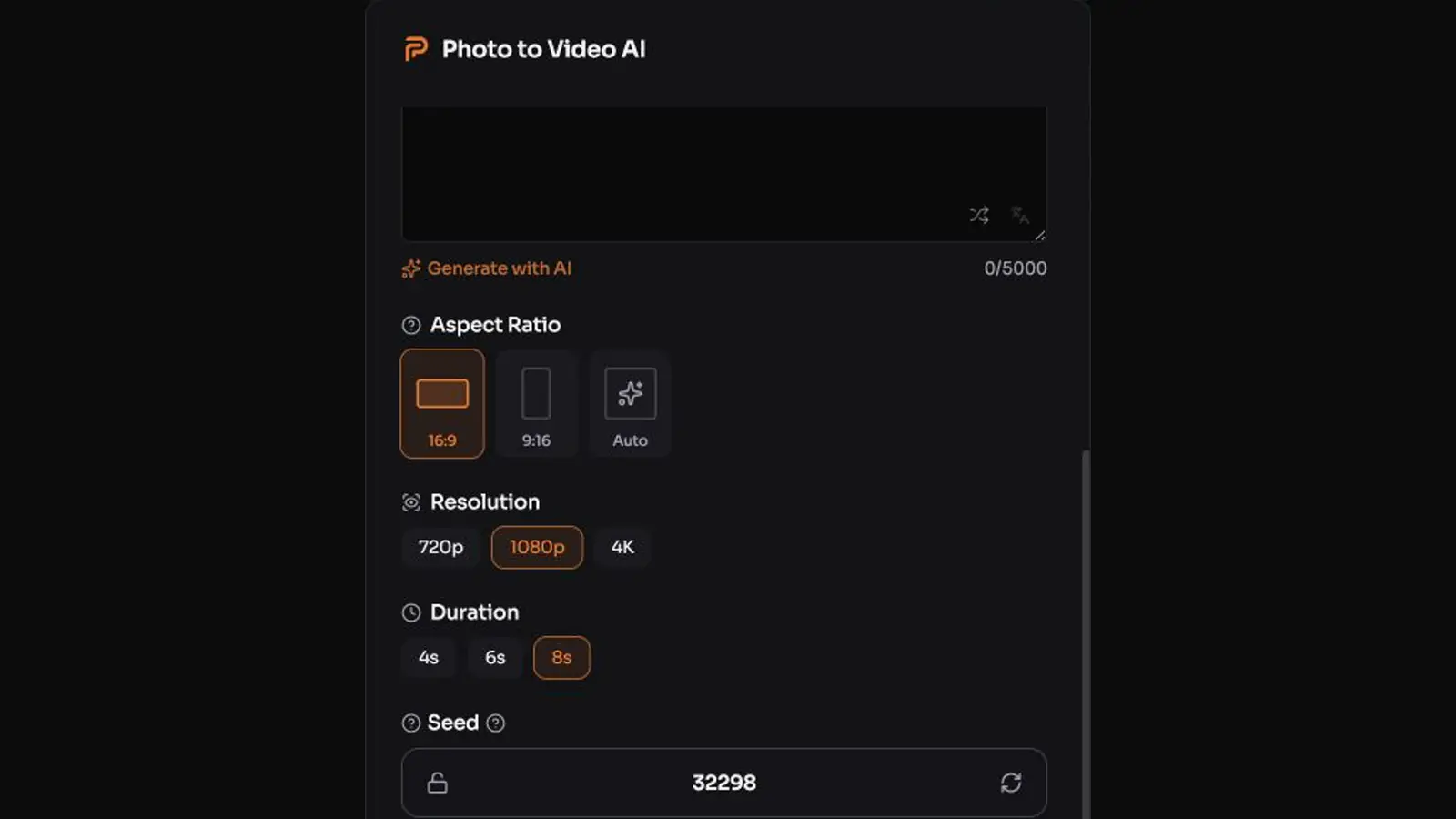
Step 6: Check the live cost before generating
PhotoToVideoAI uses its own credit system, while Google's Gemini API is billed per generated second. They are not interchangeable. Read the live credit counter beside the Generate button before every rerun, especially after changing resolution.
Do not assume that a third-party setting has the same technical meaning as a native Gemini API parameter. For example, Google's official documentation says Veo 3.1 Lite does not produce native 4K. If a platform displays a 4K choice while Lite is selected, confirm whether that route uses provider-specific processing or post-generation upscaling.
Step 7: Review one failure at a time
After generation, label the main problem before changing anything:
- Subject motion
- Camera motion
- Identity or product consistency
- Background stability
- Audio
- Framing
- Duration
Change only the largest problem. If the face changes, reduce the head movement before rewriting the audio. If the camera drifts, replace “cinematic camera” with a specific locked shot or slow push-in. If the soundtrack is crowded, keep the visual prompt and simplify the audio section.
The Veo 3.1 Lite Prompt Formula
For image-to-video, a useful beginner formula is:
subject motion + camera movement + environmental motion + lighting/style + audio + preservation constraintsHere is a complete example:
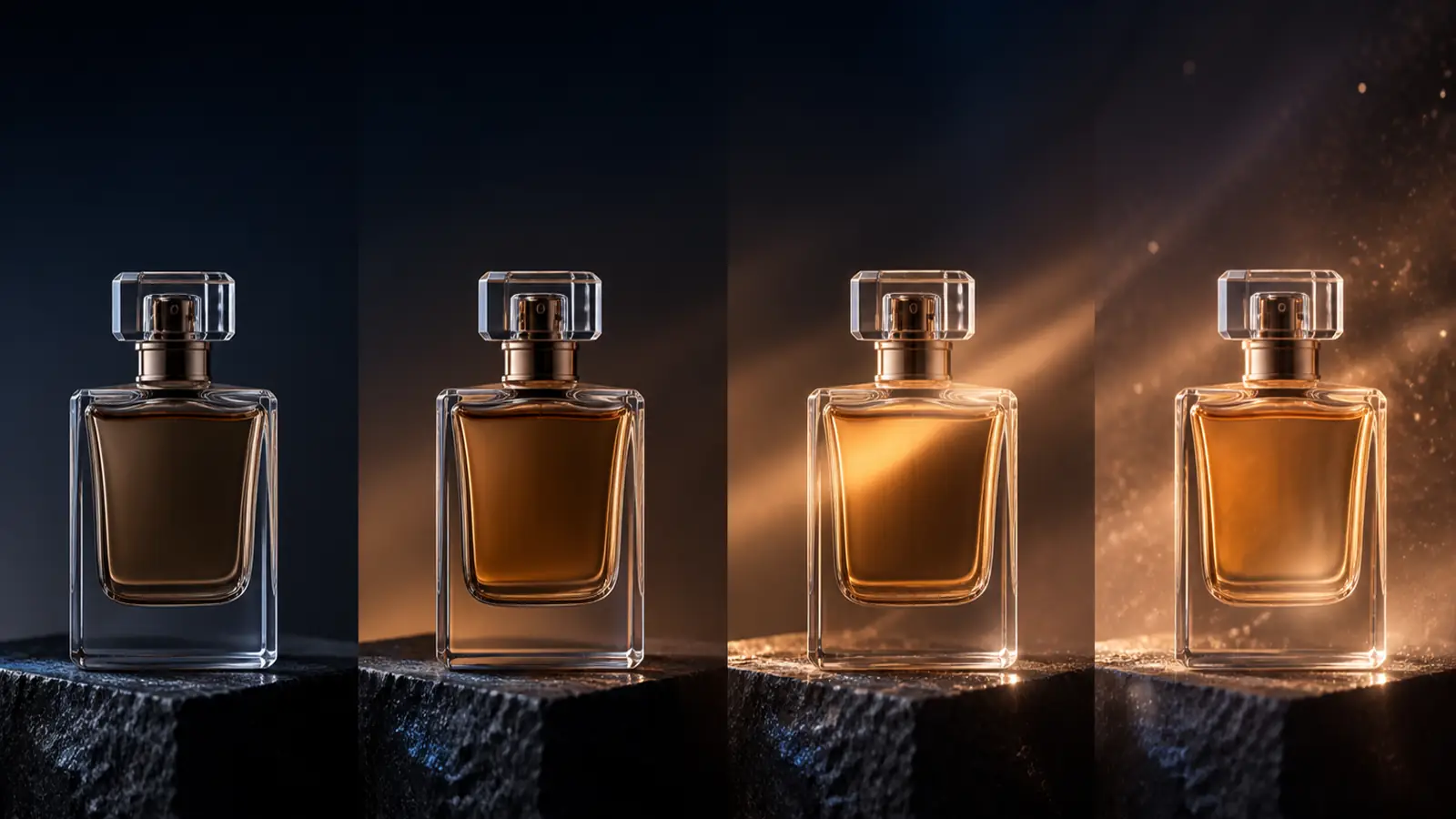
Medium product hero shot. The perfume bottle remains centered while a warm light sweep moves slowly across the glass.
Camera: a gentle, steady push-in over four seconds.
Environment: faint dust particles drift in the background.
Lighting and style: premium dark studio photography with warm amber rim light.
Audio: a soft glass chime and quiet room ambience, no music, no voice.
Preserve the bottle shape, cap, proportions, color, and label area.
One continuous shot, no cuts, no new objects.
Three prompt habits matter most:
- Name a visible action. “Make it cinematic” is a mood, not motion.
- Use one camera path. A push-in plus orbit plus handheld shake creates competing geometry.
- Direct the audio. Because native audio is always on in the current API specification, silence about sound gives the model more freedom than many beginners expect.
If camera language is unfamiliar, use these camera movement prompts designed for a single source image before testing orbit, tracking, or handheld motion.
Copy-Paste Prompts for Common Images
Use these as first tests. Replace the bracketed details, then keep the initial generation short.
Natural portrait
Medium portrait of [person]. The person makes one natural blink and a tiny relaxed smile while breathing gently.
Camera: slow, steady push-in toward the face.
Environment: subtle background light movement, no scene change.
Lighting and style: soft natural window light, realistic skin texture.
Audio: quiet indoor ambience and a faint breeze outside, no dialogue, no music.
Preserve the face, age, hairstyle, clothing, expression, and background.
One continuous shot, no cuts, no dramatic head turn.
Product advertisement
Product hero shot of [product]. The product stays still as a clean highlight travels across its surface.
Camera: gentle push-in from medium shot to close product view.
Environment: minimal studio haze and a soft reflection below the product.
Lighting and style: premium commercial studio lighting, realistic materials.
Audio: a restrained tonal rise and one soft product-reveal chime, no voice.
Preserve the product shape, packaging, logo area, colors, and label placement.
One continuous shot, no cuts, no rotation that reveals unseen sides.
Cinematic landscape
Wide landscape from the uploaded image. Clouds drift slowly and wind moves gently through the trees while the water reflects changing light.
Camera: smooth left-to-right pan at a slow pace.
Lighting and style: realistic golden-hour landscape photography.
Audio: natural wind, distant birds, and quiet moving water, no music.
Preserve the terrain, horizon, buildings, and original color palette.
One continuous shot, no new landmarks, no sudden weather change.
Old family photo
Restored-looking motion from the original family photograph. The people make tiny natural blinks and lean slightly closer together.
Camera: almost locked, with a very slow push-in.
Environment: subtle light and barely visible background movement.
Lighting and style: preserve the original aged print, grain, fading, and historical atmosphere.
Audio: quiet room tone and a soft film-projector texture, no modern music, no dialogue.
Preserve every face, age, outfit, pose, and the original composition.
One continuous shot, no strong expressions, no modernization.
Vertical social hook
Vertical close product shot of [product]. A fast but smooth light sweep reveals the product during the first second, followed by a gentle push-in.
Camera: controlled forward movement, centered composition.
Environment: subtle particles and a clean dark background.
Lighting and style: crisp social advertisement with strong contrast.
Audio: one short impact at the reveal, then a clean ambient tone, no voice.
Preserve the product silhouette, label area, colors, and proportions.
One continuous 9:16 shot, no text overlays, no cuts.
Best Veo 3.1 Lite Settings for Beginners
Use the table as a conservative starting point, not a guarantee. Image complexity matters as much as the selected model.
| Use case | First duration | Resolution strategy | Camera starting point | Audio starting point | Main risk |
|---|---|---|---|---|---|
| Portrait | 4 seconds | Test 720p, finish at 1080p | Locked shot or slow push-in | Quiet ambience, no dialogue | Face or expression drift |
| Product photo | 4 seconds | Test 720p, upgrade after shape holds | Slow push-in or small pan | One restrained reveal sound | Label and geometry changes |
| Old family photo | 4 seconds | 720p is enough for motion tests | Almost locked camera | Soft room tone, no modern soundtrack | Uncanny faces |
| Landscape | 4-6 seconds | 720p test, 1080p final | Gentle pan or pull-back | Wind, water, birds, or city ambience | Background warping |
| Vertical social ad | 4 seconds | Match final delivery needs | One quick reveal plus push-in | One impact and a simple ambient layer | Too much action in four seconds |
| First/last frame | 4-6 seconds | Test the transition at 720p | Let frame interpolation lead | Sound that evolves with the transition | Unnatural path between frames |
Google's current API rules make 8 seconds mandatory for 1080p output. That means 720p is not only cheaper; it is also the practical way to test a 4- or 6-second idea before committing to the longer render.
How to Prompt Native Audio
Veo 3.1 Lite generates audio with the video. Treat sound as part of the shot plan rather than an optional decoration.
Use one of these audio patterns:
- Ambient scene: “Audio: gentle rain on glass and distant traffic, no music.”
- Product reveal: “Audio: one soft mechanical click followed by a restrained tonal rise.”
- Nature: “Audio: light wind through trees and a distant stream.”
- Dialogue:
The woman says, "The first sample is ready." Calm, conversational voice. - Intentional restraint: “Audio: quiet room tone only, no music, no dialogue.”
Keep the spoken line short enough for the clip. A long sentence, several sound effects, music, and dramatic movement all competing inside four seconds usually produces a less controlled result.
When dialogue matters, specify who speaks, the exact line, delivery, and surrounding ambience. When it does not matter, say so. “No voice” and “no music” are useful directions when you only need an environmental sound bed.
Common Problems and Credit-Saving Fixes
| Problem | Likely cause | Change for the next test |
|---|---|---|
| Image barely moves | Prompt describes appearance but not visible motion | Add one action verb and one camera path |
| Face looks different | Head movement or expression is too large | Use a locked shot, one blink, and an identity preservation line |
| Product label changes | Camera reveals details that do not exist in the source | Replace orbit with push-in and protect the label area |
| Background bends or melts | Camera motion asks the model to invent hidden scene geometry | Reduce the move and request stable perspective |
| Clip cuts to a new scene | Prompt contains several events or a large change from the image | Ask for one continuous shot and one action |
| Audio feels unrelated | No sound direction or too many competing audio ideas | Write a separate Audio: line with one ambience and one optional effect |
| Dialogue is rushed | The spoken line is too long for the chosen duration | Shorten the line or use an 8-second generation |
| 1080p cannot use a short length | Google's current Lite specification requires 8 seconds for 1080p | Test 4 or 6 seconds at 720p, then switch to 8-second 1080p |
| Similar rerun looks different | Seed improves consistency but does not make generation deterministic | Keep the image and settings fixed, then compare one prompt change |
| Credits rise unexpectedly | Resolution or platform-specific processing changed | Recheck the live cost after every settings change |
The fastest way to waste credits is to rerun the same prompt and hope for luck. Diagnose the result, change one variable, and write down what improved.
Veo 3.1 Lite vs Veo 3.1 Fast and Standard
The model names sound like a simple quality ladder, but the feature differences matter.
| Current Gemini API route | Paid price with audio | Native resolution | Reference images | Video extension | Best starting use |
|---|---|---|---|---|---|
| Veo 3.1 Lite | $0.05/s at 720p; $0.08/s at 1080p | 720p; 1080p at 8 seconds | No | No | Cost-efficient prompt and image iteration |
| Veo 3.1 Fast | $0.10/s at 720p; $0.12/s at 1080p; $0.30/s at 4K | 720p, 1080p, 4K | Yes | Yes | Faster production with fuller Veo controls |
| Veo 3.1 Standard | $0.40/s at 720p/1080p; $0.60/s at 4K | 720p, 1080p, 4K | Yes | Yes | Higher-budget final shots and demanding work |
Prices and capabilities above come from Google's current Gemini API pricing and Veo generation documentation. They describe direct Gemini API billing, not PhotoToVideoAI credits or another platform's membership plan.
At current API prices, a 4-second 720p Lite result costs $0.20, an 8-second 720p result costs $0.40, and an 8-second 1080p result costs $0.64. Those numbers make Lite useful for iteration, but several undirected reruns can still exceed the cost of one carefully planned shot.
Choose Lite when you need to test more. Move to Fast or Standard when the validated idea requires native 4K, multi-reference guidance, extension, or a different production tradeoff.
Access, Credits, and Current Limits
You can access Veo 3.1 Lite through Google channels listed in the model card, including the Gemini API, Google AI Studio, Google Cloud, Flow, and Workspace, subject to the availability and terms of each product. You can also use a third-party interface that integrates the model.
Before choosing a route, separate these three questions:
- How do I access the model? A web generator is easier for a single clip; the API is better for automation.
- How am I charged? Google bills the API per generated second. Third-party tools convert model use into their own credits.
- Which features does this route expose? A platform may add upload handling, upscaling, presets, storage, or other processing that is not part of the native model specification.
The Gemini API currently lists Veo 3.1 Lite as a paid-tier preview with no free API tier. Preview models can change before becoming stable and may have more restrictive rate limits. Check live documentation before building a production dependency around a preview model.
Source Notes
Model features, pricing, and availability change quickly. This guide uses the following publishing-time sources:
- Veo 3.1 Lite model page
- Generate videos with Veo 3.1
- Gemini API pricing
- Veo 3.1 Lite model card
- Veo prompt guide
FAQ
What is Veo 3.1 Lite?
Veo 3.1 Lite is Google's cost-efficient Veo 3.1 video generation model for rapid iteration and high-volume workflows. It accepts a text prompt or image input and produces short video with native audio.
Can Veo 3.1 Lite turn an image into a video?
Yes. Upload an image as the starting visual, then describe what moves, how the camera moves, what the scene should sound like, and which details must remain consistent.
Is Veo 3.1 Lite free?
The Gemini API does not currently list a free tier for Veo 3.1 Lite. Third-party tools may offer trials, subscriptions, or their own credits, but those rules are separate from Google's direct API pricing.
What settings should a beginner use?
Start with a 4-second 720p generation, one camera move, one subject action, and the aspect ratio required by the publishing channel. Upgrade to 8-second 1080p only after the motion and audio direction work.
Does Veo 3.1 Lite generate audio?
Yes. Google's current model table lists native audio as always on for Veo 3.1 Lite. Add a concise audio line to the prompt so the ambience, effect, dialogue, or intentional lack of music supports the shot.
Does Veo 3.1 Lite support 4K?
No, not as a native Gemini API output. Google currently lists 720p and 1080p for Lite and explicitly says 4K is not supported. If another interface shows a 4K option, verify whether it represents platform-specific processing or upscaling.
Can I use several reference images with Lite?
Not through the Gemini API's separate referenceImages parameter. Lite supports an initial image and first-and-last-frame generation, but multiple style or content reference images are reserved for the fuller Veo 3.1 variants in the current documentation.
Is Veo 3.1 Lite better than Veo 3.1 Fast?
Lite is better for cost-efficient iteration. Fast costs more but supports native 4K, multiple reference images, and video extension. Use Lite to prove the shot, then choose Fast or Standard only when the job needs their additional capabilities.
Conclusion
Veo 3.1 Lite is most useful when you treat it as an iteration model, not a shortcut around planning.
Begin with a clean image, one action, one camera move, one audio layer, and a 4-second 720p test. Review the result, change one variable, and only then increase duration or resolution. That workflow makes the Lite price advantage meaningful—and gives the model a much clearer shot to create.