
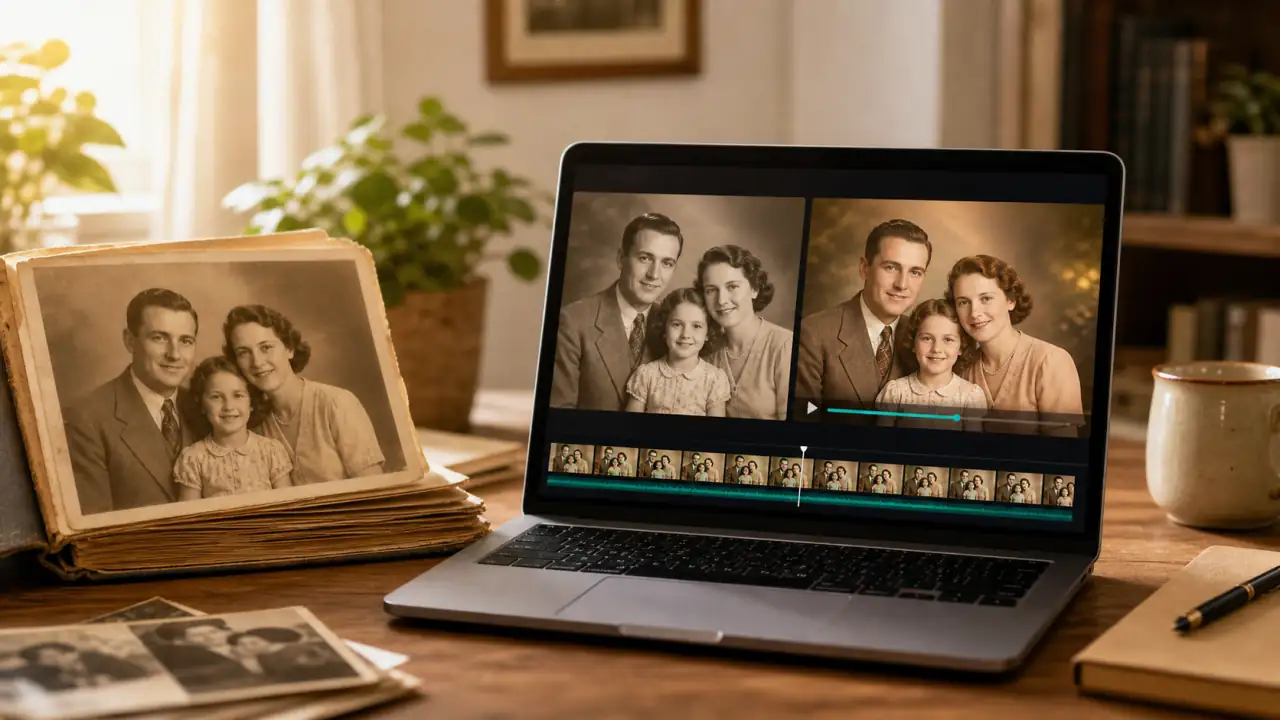
 ChatGPT
 Perplexity
 Gemini
 Claude
Old family photos are easy to over-animate.
The tempting prompt is simple: make this person smile, talk, wave, or look into the camera. But family photos are not generic portrait assets. They carry memory, grief, affection, and sometimes people who can no longer give permission. The goal is usually not to make someone perform. The goal is to add a small amount of life while keeping the person, the mood, and the original photo recognizable.
This guide shows how to use old photo to video AI naturally: how to prepare the image, what motion to ask for, what to avoid, and how to review the result before sharing it with family or posting it online.
Quick Answer
To animate an old family photo naturally, start with the clearest scan you have, crop without removing important context, write a restrained motion prompt, generate a short test, and reject any result that changes the person's identity, eyes, mouth, clothing, or original mood. The safest motions are subtle breathing, a gentle blink, a slow camera push-in, soft light movement, and minimal background depth.
Do not begin with big acting prompts. For family memories, less motion usually feels more respectful and more believable.
What "Natural" Means for Old Photo Animation
Natural does not mean realistic in the loudest possible way. It means the video feels connected to the original photograph.
For old family photos, a natural result usually has four qualities:
| Quality | What it looks like | What to avoid |
|---|---|---|
| Stable identity | The face, hairstyle, clothing, and age stay recognizable | New facial features, changed eye shape, altered smile |
| Gentle motion | Breathing, a blink, small head movement, slow camera motion | Talking, waving, dancing, sudden emotion shifts |
| Period respect | The image keeps its old-photo texture and mood | Modern lighting, glossy skin, plastic restoration |
| Emotional restraint | The clip feels like a memory being revisited | A person seeming forced to perform for the camera |
The best old photo videos usually look quiet. They do not need to prove that AI is powerful. They just need to avoid breaking the memory.
Before You Upload: Prepare the Family Photo
The AI model can only animate what it can read. A better source image makes the final video more stable, especially around eyes, hands, hair, and clothing edges.
Use this checklist before you generate:
- Scan the photo flat when possible instead of photographing it at an angle.
- Remove dust, scratches, and glare only when they hide important facial details.
- Keep enough background around the person so a slow camera movement has room.
- Avoid extreme face enhancement that changes identity before the video step.
- Choose one main subject when the photo is crowded.
- Keep a copy of the original scan before restoration or animation.
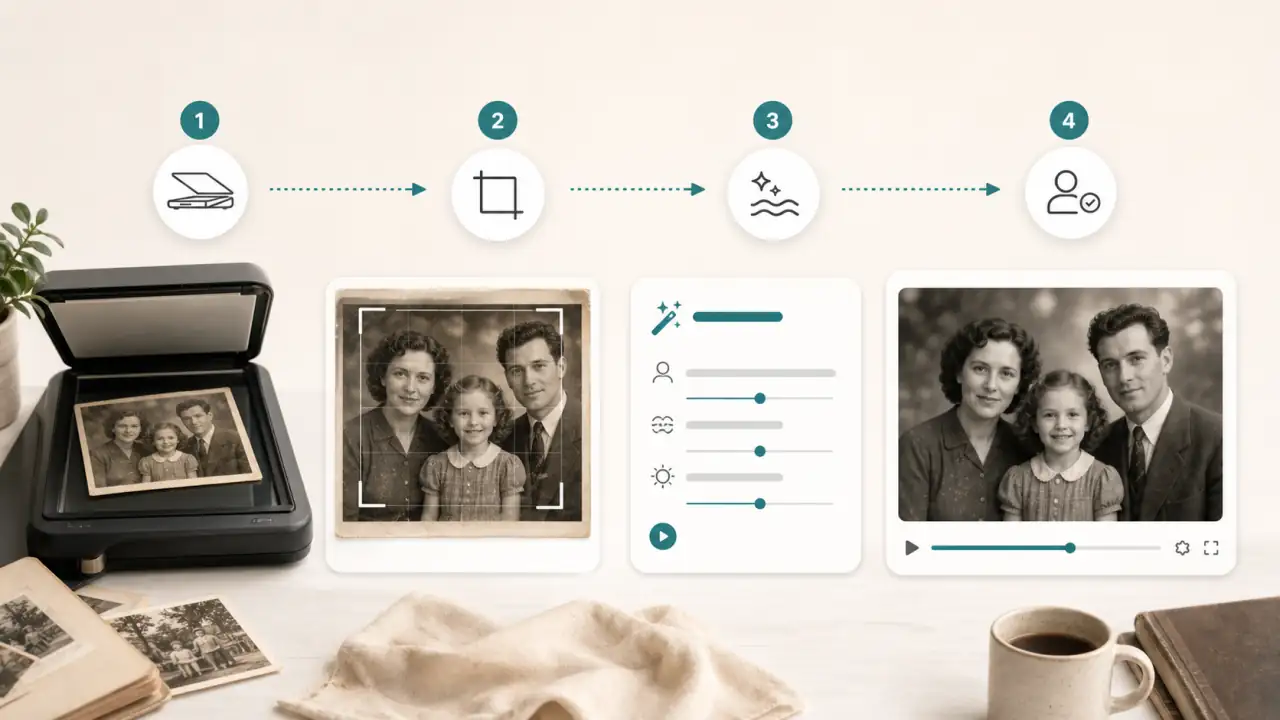
If the image is badly torn, tiny, or out of focus, restore it first in a separate step. But do not over-polish it. Old photos often feel authentic because of grain, paper texture, and imperfect edges.
Step 1: Restore and Crop Without Rewriting the Person
Light restoration helps. Heavy restoration can hurt.
Good restoration improves readability:
- Better contrast around the eyes
- Less dust across the face
- Straighter crop
- Reduced glare
- Clearer subject outline
Risky restoration changes identity:
- A new smile shape
- Different eye spacing
- Artificial skin smoothing
- Modernized hair texture
- Colorization that invents important details
For portraits, crop around the person with a little breathing room above the head and around the shoulders. For family groups, do not crop so tightly that the model has to invent missing arms, hands, or clothing.
Step 2: Choose Subtle Motion, Not Big Acting
Old photo animation works best when the motion is small enough to feel plausible.
| Photo type | Safer motion | Avoid |
|---|---|---|
| Single portrait | Gentle blink, subtle breathing, slow push-in | Talking, wide smile, head turn beyond the original pose |
| Couple photo | Slight breathing, soft eye movement, warm light shift | Hugging, kissing, large body movement |
| Group family photo | Very small camera push-in, slight depth, soft film movement | Individual people moving in different directions |
| Child portrait | Tiny blink, calm expression, soft background motion | Exaggerated emotion or adult-like gestures |
| Black-and-white portrait | Film-like camera movement, preserved monochrome tone | Strong colorization inside the same generation |
If you are unsure, choose less motion than you think you need. You can always regenerate with a slightly stronger prompt. It is harder to fix a clip where the face has already drifted.
Step 3: Write a Prompt That Protects the Person
A vague prompt gives the model too much freedom:
Animate this old photo.A better prompt defines the subject, the motion, the camera, the mood, and the preservation rules.
Use this formula:
Subject + subtle motion + camera movement + atmosphere + preservation constraints.For example:
Animate the old family portrait with very gentle breathing and a natural blink. Use a slow, soft camera push-in and warm film-like light. Keep the face, age, hairstyle, clothing, and original expression consistent. No talking, no new smile, no face warping, no extra people.If you want a focused place to test that kind of restrained memory animation, start with a workflow built to animate an old family photo with gentle motion, then judge the output as a family memory rather than a generic AI clip.
Step 4: Generate a Short Test First
Do not spend your best export settings on the first attempt.
Generate a short test and review it slowly. Pause on the first frame, middle frame, and last frame. Most old-photo problems show up in still frames before they become obvious in motion.
Check:
- Did the eyes stay the same shape?
- Did the mouth invent a new expression?
- Did hair or glasses melt into the background?
- Did clothing buttons, collars, or jewelry mutate?
- Did the person seem too modern or too polished?
- Did the mood still match the original photo?
If the answer feels wrong, lower the motion. Add stronger preservation constraints. Try a tighter crop only if the background is causing instability.
Step 5: Review the Result Like a Family Member Would
The technical question is: does the video look stable?
The human question is: would the family recognize this as respectful?
Before sharing, ask:
- Does this still feel like the same person?
- Would the motion feel comforting, or unsettling?
- Does the clip imply speech, emotion, or behavior that was never in the photo?
- Would close relatives be comfortable seeing it?
- Should the video be kept private instead of posted publicly?
This is especially important for deceased relatives, children, weddings, military photos, memorial photos, and images connected to grief. AI can make the motion feel vivid, but vivid is not always appropriate.
Prompt Examples for Old Family Photos
Use these as starting points. Keep the first generation restrained, then adjust motion only after you see the result.
Single Portrait Prompt
Animate the old portrait with subtle breathing and a natural blink. Slow cinematic push-in, soft window light, gentle film grain. Keep the person's face, age, hairstyle, clothing, and expression unchanged. No talking, no teeth movement, no new smile, no face distortion.Couple Photo Prompt
Animate the old couple portrait with very gentle breathing and a slight sense of warm light moving across the scene. Slow camera push-in. Keep both faces, posture, clothing, and original expressions consistent. No kissing, no waving, no dramatic head movement.Family Group Prompt
Create a calm memory video from this old family group photo. Use a slow camera push-in and very subtle depth movement. Keep every person in the same position and preserve faces, clothing, and background. No individual gestures, no new people, no warped hands.Black-and-White Photo Prompt
Animate the black-and-white family portrait with a soft film-like camera push-in, gentle breathing, and minimal eye movement. Preserve the monochrome look, original paper texture, facial identity, clothing, and mood. No colorization, no modern lighting, no exaggerated expression.Damaged Photo Prompt
Use minimal motion only. Add a slow camera push-in and soft light movement while preserving the restored areas of the old photo. Keep the face, eyes, mouth, clothing, and background stable. No new details in damaged areas, no face reconstruction, no sudden movement.Common Mistakes and How to Fix Them
| Problem | Likely cause | Better fix |
|---|---|---|
| The face looks like a different person | Prompt asks for too much expression, or the source face is blurry | Use a clearer crop and add "keep identity, age, face shape, and expression unchanged" |
| The smile becomes strange | The model is inventing mouth movement | Remove smile requests and add "no talking, no teeth movement, no new smile" |
| The eyes feel uncanny | Blink or gaze movement is too strong | Ask for "one subtle natural blink" or remove eye movement entirely |
| Hair, glasses, or jewelry warp | Small details are unstable | Reduce motion, improve contrast, and add preservation constraints |
| Group photo feels chaotic | Too many subjects are moving | Use camera movement only and avoid individual gestures |
| The image looks too modern | Restoration or prompt changed the era | Ask to preserve film grain, monochrome tone, paper texture, and original lighting |
Most fixes come from reducing ambition. Old photos rarely need complex movement. A slow push-in can be enough.
Privacy, Consent, and Sensitive Family Memories
Family photos deserve more care than stock images.
Before uploading or sharing, think about:
- Consent from living people in the image
- Whether relatives would be comfortable with animation
- Whether the photo includes children or sensitive family history
- Whether the platform stores uploads or makes generations public
- Whether the clip should be marked as AI-generated
- Whether fake speech or lip sync would cross a line
For private family archives, a quiet no-speech animation is usually safer than a synthetic talking portrait. If you publish the result on social media, add context so viewers know it is AI-assisted.
Best Export Settings for Family Photo Videos
Keep exports simple and archival.
| Use case | Recommended format | Aspect ratio | Notes |
|---|---|---|---|
| Family archive | MP4 | 16:9 or original crop | Keep the original scan and prompt in the same folder |
| TikTok, Reels, Shorts | MP4 | 9:16 | Leave space around the face for captions and UI overlays |
| YouTube or memorial slideshow | MP4 | 16:9 | Use slow pacing and avoid abrupt cuts |
| Messaging apps | MP4 | 1:1 or 4:5 | Keep file size small and motion gentle |
| Website or digital album | MP4 | 16:9 | Use a short loop if the page design supports it |
Save the original image, restored image, prompt, generated video, and export date. If you revisit the project later, those details make it easier to regenerate a better version without guessing.
When to Use a General Photo Animation Workflow
Some old photos are really portrait animation tasks: a clean studio headshot, a graduation portrait, or a restored profile image with one clear subject. In that case, you can use softer portrait motion instead of dramatic effects and adapt the prompt for an older image.
The same rule still applies: keep the person recognizable. For family content, the best AI video is often the one that does the least.
FAQ
Can AI animate old family photos?
Yes. AI can add subtle motion to an old photo, such as breathing, blinking, light movement, or a slow camera push-in. The result depends heavily on photo quality and prompt restraint.
How do I make an old photo animation look natural?
Use small motions and preservation constraints. Ask the model to keep the person's face, age, clothing, expression, and original mood unchanged. Avoid talking, wide smiles, dancing, or dramatic gestures.
Should I restore an old photo before animating it?
Usually, yes, but only lightly. Improve clarity, contrast, and dust issues if they block important details. Avoid restoration that changes the person's face before the AI video step.
Can I animate black-and-white photos?
Yes. Black-and-white photos can work well when the prompt preserves the monochrome tone and asks for film-like motion. If you want colorization, test it separately instead of combining too many changes in one generation.
Why does the face look different after animation?
The model may be inventing missing detail or trying to satisfy a prompt that asks for too much expression. Use a clearer source image, reduce motion, and add constraints such as "keep the face, age, expression, and identity unchanged."
Is it okay to animate photos of deceased relatives?
It can be meaningful, but handle it carefully. Get family consent when possible, avoid fake speech or exaggerated emotion, and consider keeping the result private if the image is sensitive.
What is the best prompt for old photo to video AI?
The best prompt is specific and restrained: describe the person, ask for subtle breathing or one natural blink, add a slow camera push-in, preserve the original photo style, and forbid face changes, new smiles, talking, extra people, and warping.
Conclusion
The most natural way to animate an old family photo is to treat it as a memory first and an AI video second.
Start with a clean scan, preserve the original person, choose gentle motion, test before exporting, and share only when the result feels respectful. A good old photo video should not make the past perform. It should let the original photo breathe a little while staying true to what was already there.