
 ChatGPT
 Perplexity
 Gemini
 Claude
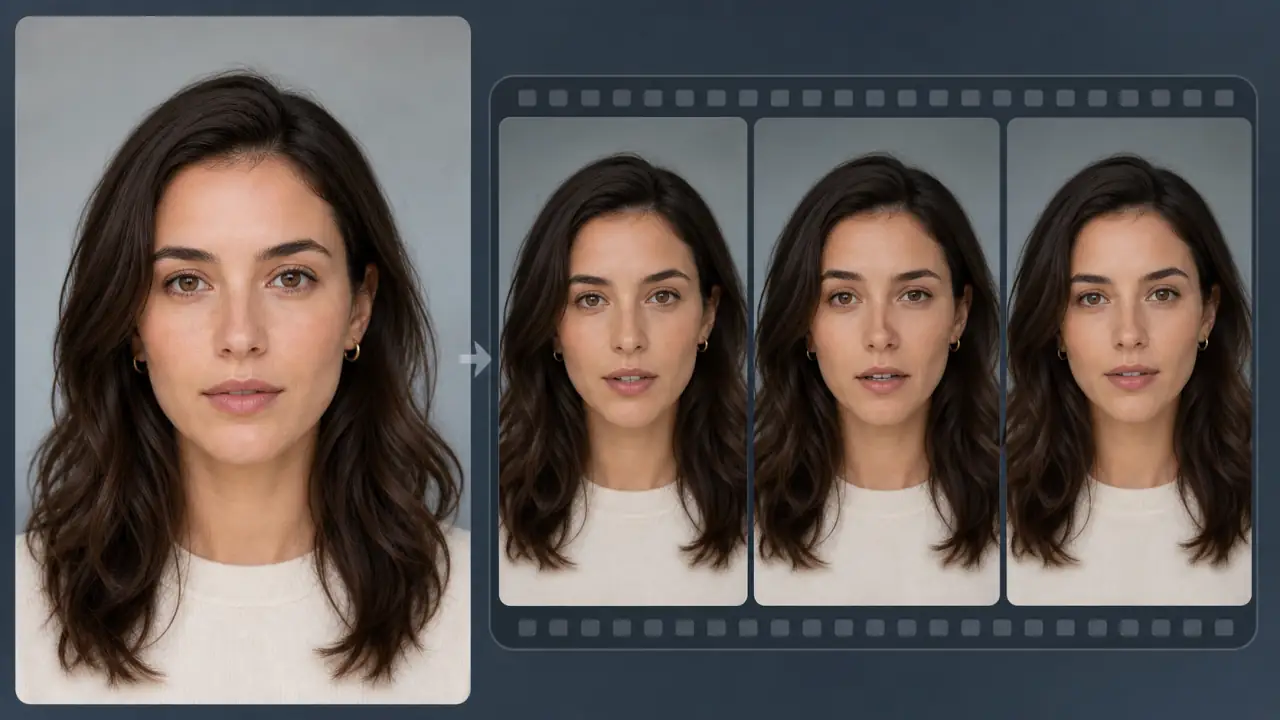
The uploaded portrait looks sharp. The first video frame still looks like the same person. Then the eyes shift, the jaw narrows, the mouth smears, or the subject becomes someone else by the end of the clip.
Randomly generating the same prompt again may produce one lucky result, but it does not fix the workflow. Face distortion usually needs a more specific response: improve the source face, reduce what the model must invent, use safer motion, add identity guidance, and review the clip before increasing complexity.
Quick Answer
To reduce face distortion in photo-to-video AI, start with a clear, well-lit face that is large enough in the frame. Use one dominant subject, request one small and physically plausible motion, keep the camera simple, and generate the shortest useful test. Add constraints that preserve the facial structure, age, hairline, expression, and identity.
If the face is already tiny, blurred, shadowed, or partly hidden in the source image, prompt rewrites or negative prompts will not reliably recover the missing detail. Crop closer, choose a better source photo, or create a separate portrait shot. If the first frame is accurate but later frames drift, shorten the clip, reduce the head or mouth movement, and use subject-reference or identity-binding controls when the tool provides them.
The goal is not to stop all motion. It is to give the model a motion request the source image can support.
Diagnose the Face Problem Before You Fix It
“The face looks bad” can describe several different failures. Identify the symptom first, because each one has a different first fix.
| What you see | Likely cause | First fix to try |
|---|---|---|
| Eyes, mouth, or jaw change during motion | Expression or head movement is too ambitious | Replace it with breathing, one blink, or a tiny expression change |
| The person slowly becomes someone else | Weak identity anchor, long duration, or too much scene change | Shorten the clip and enable a subject-reference feature |
| A distant face becomes soft or mushy | The face occupies too few pixels | Crop closer or create a separate medium/close portrait shot |
| Mouth and teeth warp while speaking | The general video model is inventing complex mouth shapes | Reduce speech or use a dedicated talking-photo/lip-sync workflow |
| Several people merge or exchange features | Multiple faces, overlap, or competing movement | Keep the group still, animate one subject, or split into shots |
| The first and last frames look right but the middle melts | Start and end states require a large pose or angle change | Reduce the transition distance or stop using the forced end frame |
| Facial detail flickers without a major identity change | Lighting, texture, or motion varies from frame to frame | Lock lighting, simplify motion, and avoid aggressive enhancement |
| The face looks smooth, waxy, or over-retouched | Source enhancement or beauty processing removed real texture | Return to a more natural source and lower the enhancement strength |
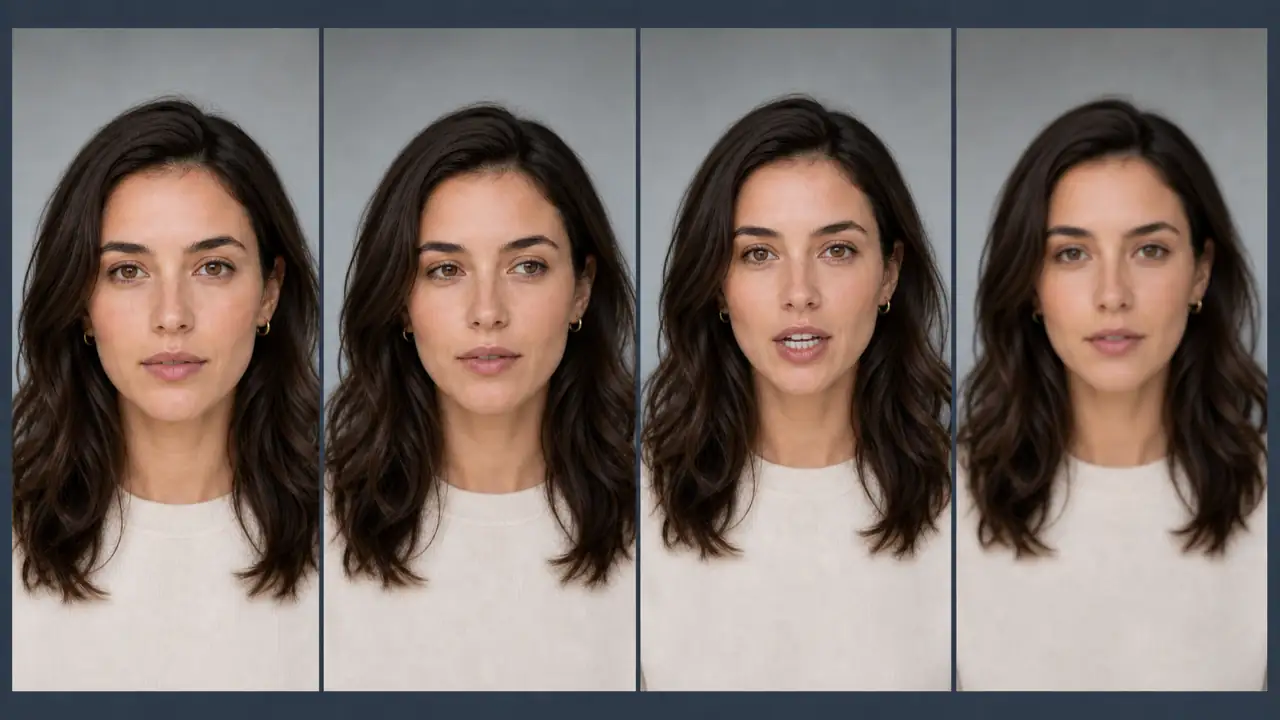
A problem that begins in the first generated frame often points to the source image or crop. A problem that grows over time usually points to motion, duration, camera movement, or weak identity guidance. A problem that appears only during speech or a large head turn is more likely an action-design problem.
Why Faces Distort in Photo-to-Video AI
An image-to-video model does more than move the pixels in a photo. It has to predict how the face changes as the person blinks, talks, turns, moves closer to the camera, or passes through different lighting. It may also need to invent a side of the face, teeth behind closed lips, an ear hidden by hair, or skin detail that is barely visible in the uploaded image.
Every extra unknown increases the chance of distortion.
- Small faces contain less usable detail. A wide photo may look clear to a person, but the face can occupy only a small part of the model input.
- Occlusion hides the geometry the model needs. Hair over an eye, sunglasses, hands near the mouth, deep shadow, or another person can make the identity harder to preserve.
- Large expressions change several landmarks at once. Talking, laughing, shouting, and singing affect the lips, teeth, cheeks, jaw, and eyes.
- Head turns expose unseen surfaces. A front-facing photo does not contain an accurate profile, so a large turn forces the model to invent one.
- Camera and subject motion can compete. A fast push-in plus a head turn plus a smile is three difficult changes, not one cinematic instruction.
- Longer clips allow errors to accumulate. A face can start correctly and drift a little farther from the reference in each group of frames.
- Multiple people divide attention. Group photos add more faces, overlaps, hands, clothing, and motion relationships to preserve.
This is why “no distorted face” is useful as a constraint but weak as a complete solution. It names the unwanted result without removing the conditions that caused it.
Step-by-Step Face-Safe Workflow
Use this workflow before changing models or spending credits on repeated generations. The first test should be deliberately conservative. Once it works, increase one variable at a time.
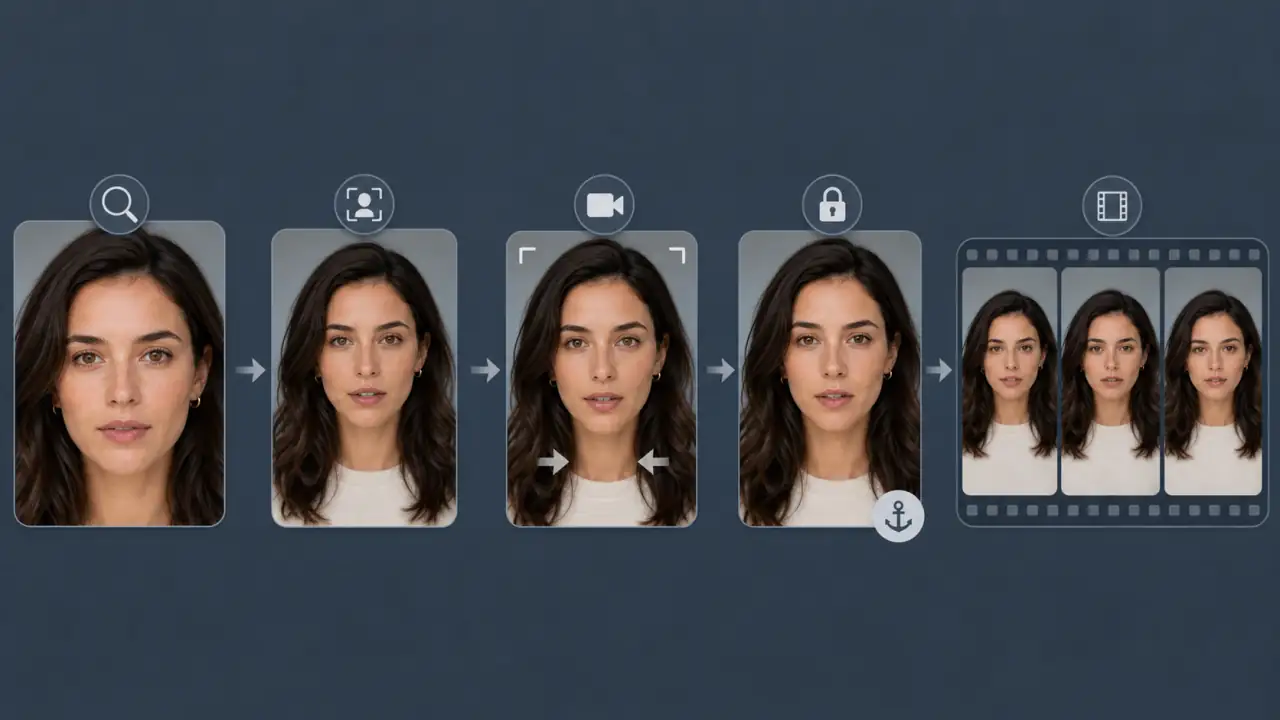
Step 1: Inspect the Source Face at the Final Crop
Do not judge only the full-resolution image. Crop it to the framing you want in the video, then inspect the face at that size.
Check that:
- Both eyes are readable and not hidden by glare, hair, or deep shadow.
- The nose, lips, chin, jawline, ears, and hairline are not smeared.
- The expression is neutral or mild rather than mid-speech or tightly squinting.
- The face is not pushed against the edge of the frame.
- The image does not contain aggressive beauty filters or fake sharpening halos.
- The crop leaves enough room for the requested camera movement.
If an old photo is damaged, restore tears, dust, and contrast first, but do not redesign the face. An enhancement that creates different eyes or overly smooth skin can become a new source of identity drift.
Step 2: Remove Occlusion and Competing Faces
One clear subject is the safest test. If the photo contains a crowd, reflected faces, a poster in the background, or another person partly covering the main subject, crop or clean the scene before animation.
For group photos, choose one of two strategies:
- Keep the people almost still and animate the camera or lighting.
- Create separate close shots when a specific face must move or speak.
Trying to make every person blink, smile, turn, and gesture at the same time creates too many independent facial changes.
Step 3: Choose One Low-Risk Motion
Start with the smallest motion that still makes the photo feel alive:
- Natural breathing
- One subtle blink
- A tiny eye movement
- A slight relaxed smile
- Very gentle hair or clothing movement
- A locked camera
- A slow push-in
Avoid starting with speech, laughter, a large head turn, running, dancing, or a full orbit around the subject. Those actions may be possible, but they are poor diagnostic tests because several things can fail at once.
Step 4: Write Preservation Constraints
Describe the motion first, then state what must remain stable. Protect concrete features instead of relying only on “keep the face consistent.”
Useful preservation language includes:
Preserve the same facial structure, eye shape, jawline, hairline, age,
skin texture, and natural expression. Keep the identity unchanged.
Add only the exclusions that match the risk:
No talking, no exaggerated smile, no large head turn, no face morphing,
no new accessories, no lighting change, no extra people.
A long list of generic negative terms can conflict with the positive motion request. Five relevant constraints are usually more useful than twenty unrelated ones.
Step 5: Use Subject Reference When Available
A first-frame image controls how the clip begins, but it does not guarantee that the face will remain identical later. A subject-reference feature gives the model an additional identity anchor.
Different tools use different names:
| Feature | What it helps with | Limitation |
|---|---|---|
| First-frame image | Accurate opening composition and appearance | The face can still drift after the first frame |
| Subject/face reference | Facial identity across motion | A poor or mismatched reference can still produce weak results |
| Multiple references | Front, three-quarter, profile, outfit, or hairstyle information | Conflicting angles, lighting, or expressions can confuse the model |
| Element/subject binding | Locks a selected person or object more strongly during generation | Availability and behavior vary by model |
| First and last frames | Controls the beginning and endpoint | Large differences can cause morphing in the middle |
MiniMax video generation documentation describes a subject-reference mode that uses a face photo to maintain facial features. Kling VIDEO 3.0 includes element binding for stronger subject consistency. Google Veo 3.1 supports up to three reference images for a person, character, or product.
Use references as evidence, not decoration. Prefer clean images of the same person with compatible age, hairstyle, lighting, and expression. If one reference is a bright smiling selfie and another is a dark profile with different hair, the model has to reconcile two identities instead of preserving one.
Step 6: Generate the Shortest Useful Test
Choose the shortest duration available that can show the intended motion. Keep the source, crop, aspect ratio, and model unchanged while you test the prompt.
If you need a simple place to compare subtle and stronger motion, test a lower-motion portrait animation first. Save the version where the middle and final frames still look like the uploaded person, not the version with the biggest movement.
The first successful clip may look quiet. That is useful. It proves the identity can survive the basic motion before you add speech, a head turn, or a more complex camera move.
Step 7: Change One Variable at a Time
When the face still fails, use this retry order:
- Reduce the expression or head movement.
- Simplify or lock the camera.
- Shorten the duration.
- Crop closer.
- Replace the source image.
- Add or replace the subject reference.
- Test a different model with the same source and prompt.
Do not change the image, prompt, model, duration, and aspect ratio in the same retry. If the next clip improves, you will not know why.
Copy-Paste Prompts for More Stable Faces
Use these prompts as starting points. Replace the bracketed details, then keep the first test conservative.
Natural Portrait
Medium close-up portrait of [person]. The subject breathes naturally and
blinks once with a calm neutral expression. The camera makes a very slow,
steady push-in. Soft natural light remains unchanged. Preserve the same
facial structure, eye shape, jawline, hairline, age, skin texture, and
identity. No talking, no exaggerated smile, no head turn, no face morphing,
no new accessories, no cuts.
Old Family Photo
Gently animate this old family portrait with subtle breathing and one soft
blink. Keep the camera locked and preserve the original face, age, hairstyle,
clothing, expression, photo grain, and historical character. No speech, no
modern makeover, no wide smile, no head rotation, no new people, no face
warping, no background replacement.
Three-Quarter or Profile Portrait
Animate this three-quarter portrait with minimal natural breathing and a tiny
eye movement. The head remains in the original angle and the camera stays
static. Preserve the visible profile, nose shape, eye position, jawline,
ear, hairline, and identity. Do not turn toward the camera, reveal a new side
of the face, speak, smile broadly, or change the lighting.
Small Group Photo
Animate this group portrait with a slow camera push-in and subtle ambient
movement only. Every person keeps the original face, expression, age,
hairstyle, clothing, and position. The people remain almost still. No talking,
no individual head turns, no new people, no merged faces, no identity change,
no cuts.
Talking Portrait Test
Close portrait of [person] delivering one short calm sentence with restrained
mouth movement and a stable head position. The camera remains locked. Preserve
the same eyes, nose, jawline, teeth appearance, hairline, age, and identity.
No large smile, no shouting, no head turn, no camera movement, no face morphing.
Talking is still a high-risk task. If the mouth or teeth break repeatedly, stop asking the general photo-to-video model to solve both body motion and accurate speech. Generate a stable silent portrait first, then test a dedicated lip-sync or talking-photo workflow.
Troubleshooting Face Distortion
Use the table below as an escalation guide rather than a reason to regenerate the same prompt indefinitely.
| Problem | Likely cause | Try first | If it still fails |
|---|---|---|---|
| Eyes become uneven | Blink, squint, or head angle is too strong | Remove eye action and lock the head | Use a clearer front-facing source |
| Jaw or nose changes | Large head turn or aggressive camera orbit | Keep the original angle and use a static camera | Add a compatible three-quarter reference |
| Mouth stretches or teeth multiply | Speech, laughter, or smile is too complex | Use a closed-mouth micro-expression | Move speech to a lip-sync workflow |
| Face becomes a different person | Weak identity anchor or long generation | Shorten motion and add subject reference | Try a model with stronger identity controls |
| Face looks blurry in a wide shot | Too few facial pixels | Crop closer | Use a separate portrait insert instead of the wide shot |
| Skin flickers | Lighting or texture changes between frames | Lock light and remove style-change language | Return to a less processed source |
| Person becomes younger or older | Age is not anchored or enhancement is strong | State the age and preserve original skin texture | Remove the enhancer or replace the source |
| Hairline or earrings move | Small identity details are not protected | Name the hairline, parting, earrings, and silhouette | Use a cleaner reference where those details are visible |
| Two group members merge | Overlap and simultaneous motion | Keep subjects still and move only the camera | Split the group into separate shots |
| Good opening, bad ending | Duration or action accumulates too much drift | Shorten the clip and reduce the final movement | Regenerate from the last accurate frame |
One failed render can be random. The same failure across several controlled tests usually means the source, framing, or motion design needs to change.
When to Regenerate, Reframe, or Repair in Post
Not every imperfect face needs the same response.
Reframe or replace the source image when:
- The face is tiny, blurred, blocked, or heavily shadowed.
- The crop cuts through the chin, hair, or side of the face.
- The photo contains a strong wide-angle selfie distortion.
- Restoration or beauty enhancement already changed the likeness.
Regenerate when:
- The eyes, nose, mouth, jaw, or age change across many frames.
- The subject becomes a different person.
- The face melts during a head turn or transition.
- Multiple faces merge or swap features.
- The prompt asks for motion the source image cannot support.
Trim, cut, or repair in post when:
- Only the final few frames drift.
- One blink frame looks wrong but the rest is stable.
- The face is accurate and only mildly soft or compressed.
- A short cutaway can hide the problem without changing identity.
Face enhancement is not the same as identity recovery. Sharpening may make a soft frame look cleaner, but it can also invent eyelashes, teeth, pores, or facial contours. Compare enhanced results with the original portrait, especially for family photos, memorial content, client work, or any person whose likeness matters.
If the problem extends beyond one face and includes clothing, hairstyle, body proportions, or continuity between scenes, continue with the broader workflow for how to keep the same person consistent across multiple clips.
Face-Safe Review Checklist
Watch the clip once at normal speed, once frame by frame, and once at the final social-media crop.
- Does the middle frame still look like the uploaded person?
- Do the eyes keep the same shape, spacing, and direction?
- Does the mouth stay anatomically believable?
- Does the jawline widen, narrow, or slide?
- Does the subject keep the same age and skin texture?
- Do the hairline, hairstyle, ears, and accessories stay stable?
- Does a head turn reveal a believable side of the face?
- Do background faces distract from the main subject?
- Does the final frame remain usable, or should the clip end earlier?
- Does a 9:16, 1:1, or 16:9 crop make the face too small?
- Would a viewer who knows the person recognize them throughout?
Reject a visually impressive clip if the identity is wrong. A quieter video with an accurate face is usually more useful than dramatic motion that changes the person.
FAQ
Why does the face change after the first frame in an AI video?
The uploaded image strongly anchors the opening frame. Later frames require the model to infer expressions, hidden facial surfaces, lighting changes, and motion. Strong actions, long clips, large head turns, and small source faces give it more chances to drift.
Can a negative prompt completely stop face distortion?
No. “No face morphing” can guide the model, but it cannot restore details that are absent from the source. Improve the input, framing, motion, and reference controls before expanding the negative prompt.
What is the best source photo for face-safe animation?
Use a sharp, evenly lit portrait with visible facial landmarks, a neutral or mild expression, a simple background, and one dominant person. Front-facing and gentle three-quarter views are safer starting points than extreme profiles.
Should I upscale a photo before turning it into a video?
Upscaling can help a slightly soft face, but it cannot recover an accurate identity from a tiny or badly damaged image. Inspect the result closely and avoid enhancements that replace real features with generic “perfect” eyes, teeth, or skin.
Why do faces look worse in wide AI video shots?
A distant face occupies fewer pixels, leaving the model less reliable information about the eyes, mouth, and proportions. Crop closer or use a separate portrait shot when facial identity matters.
Can an AI face enhancer repair a distorted video?
It can improve mild softness, noise, or compression. It is less reliable when the facial structure changes across many frames. Regenerate structural warping and identity drift instead of polishing the wrong face.
Is a subject reference better than a first-frame image?
They solve related but different problems. The first-frame image anchors the opening composition. A subject reference can guide identity across later motion. When available, a clean first frame and compatible face reference can work together.
Conclusion
The most reliable way to fix face distortion is to reduce how much the model must guess. Start with a readable face, one subject, one small motion, one simple camera instruction, and a short test. Protect specific facial features, use identity references when available, and compare the middle and final frames with the original photo.
If the result still fails, do not keep adding adjectives. Reframe the image, reduce the action, shorten the clip, or change the generation method. Face-safe photo animation is less about finding a magic sentence and more about building a controlled test that preserves the person before it adds spectacle.