
 ChatGPT
 Perplexity
 Gemini
 Claude
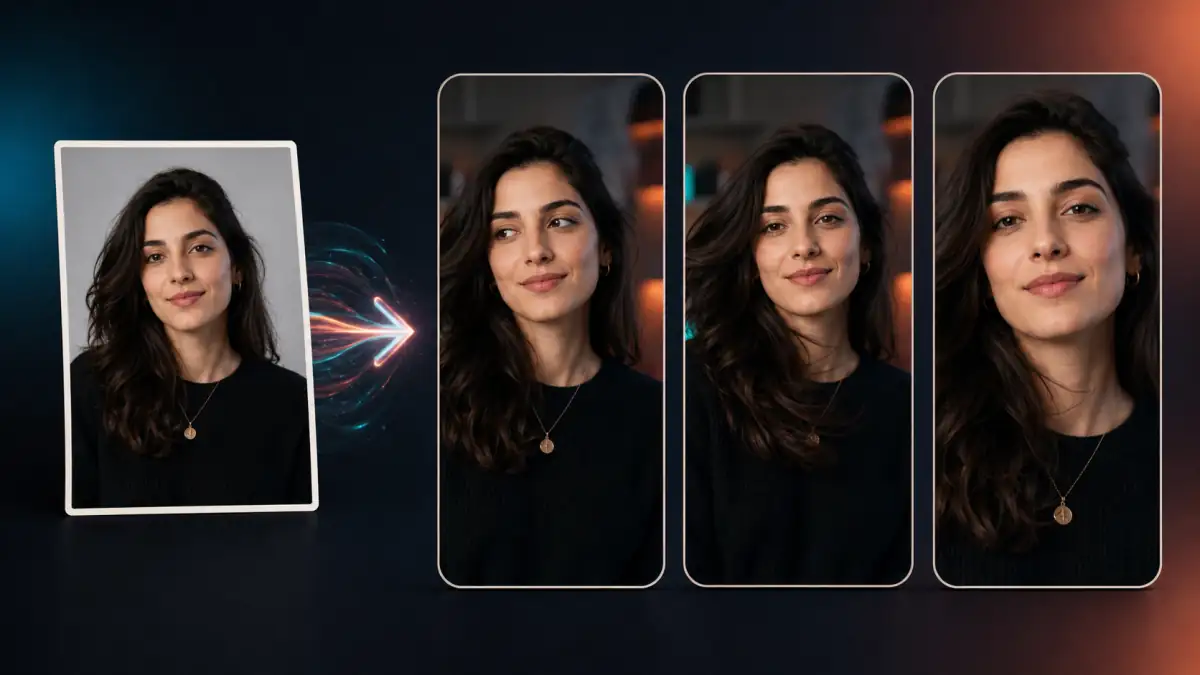
A strong photo can stop a scroll, but a still image does not automatically become a strong TikTok video when an AI model makes it move.
The face may drift. A product label may change. A landscape photo may be squeezed into a vertical frame. Even a technically clean animation can feel slow if nothing understandable happens in the opening seconds. The useful question is not simply, “Can AI animate this photo?” It is, “Can this photo become one clear, vertical, TikTok-ready shot?”
This guide shows how to turn one image into a short 9:16 clip, build a visible hook into the first two seconds, write a controlled motion prompt, and finish the result with captions and sound. The goal is not to promise a viral post. It is to create a usable visual asset that still looks like your original subject.
Quick Answer
To turn one photo into a TikTok clip with image-to-video AI, start with a clear image that can be composed vertically. Choose a model with 9:16 output when available, then prompt one small subject action and one camera movement. Generate a short 5-8 second draft, check the face, product, hands, background, and framing, and only then add captions, music, voiceover, or a call to action in an editor.
For the first test, do not ask the model to write text, create several shots, or perform a dramatic transformation. Make the visual change readable early: a product catches a moving light, a portrait looks toward the camera, steam rises from a drink, or an illustration gains subtle hair and fabric motion. You can generate a vertical image-to-video draft from your own photo, then refine the prompt after seeing what the source image can support.
TikTok's official Creative Codes recommend vertical 9:16 framing, footage of at least 720p, room for the app interface, a hook-body-close structure, and purposeful sound. Those are useful production principles. The 5-8 second length and first-two-second visual change used in this guide are practical image-to-video starting points, not platform limits.
What Makes a One-Photo TikTok Clip Work
A one-photo clip has less information than footage captured over time. The model must predict what happens next while preserving what already exists. The most reliable results come from giving it a narrow job.
A usable clip usually has four qualities:
- A vertical composition: the main subject fills a 9:16 frame without being trapped behind interface controls.
- An early visual change: viewers can understand the motion without waiting through an empty setup.
- One focal idea: one expression, product detail, environmental effect, or camera move carries the shot.
- A protected subject: the prompt says what must remain unchanged, not only what should move.
Different photos invite different motion. Match the idea to visible information in the source instead of asking the model to invent an unseen side of a face, product, or location.
| Source photo | Safer motion | First-two-second hook | Main risk |
|---|---|---|---|
| Portrait or selfie | Blink, breath, tiny smile, slow push-in | Eyes meet the camera or light shifts across the face | Face, teeth, hair, or expression drift |
| Product photo | Light sweep, reflection shift, gentle push-in | Material or packaging detail becomes visible | Label, logo, shape, or color changes |
| Food or drink | Steam, condensation, small light movement | Texture or warmth appears immediately | Invented ingredients or warped tableware |
| Artwork or anime image | Hair, fabric, particles, slight parallax | Static art appears to come alive | Character or art-style redesign |
| Travel or landscape photo | Cloud, water, foliage, gentle pan | Atmosphere changes while the landmark stays stable | Bent architecture or drifting horizon |
The safest motion often happens around the subject rather than through it. Moving light behind a product is less risky than spinning the product 360 degrees. A breeze through a portrait's hair is less demanding than a full-body dance. The first draft should discover the photo's stable motion range, not test the maximum amount of movement the model can produce.
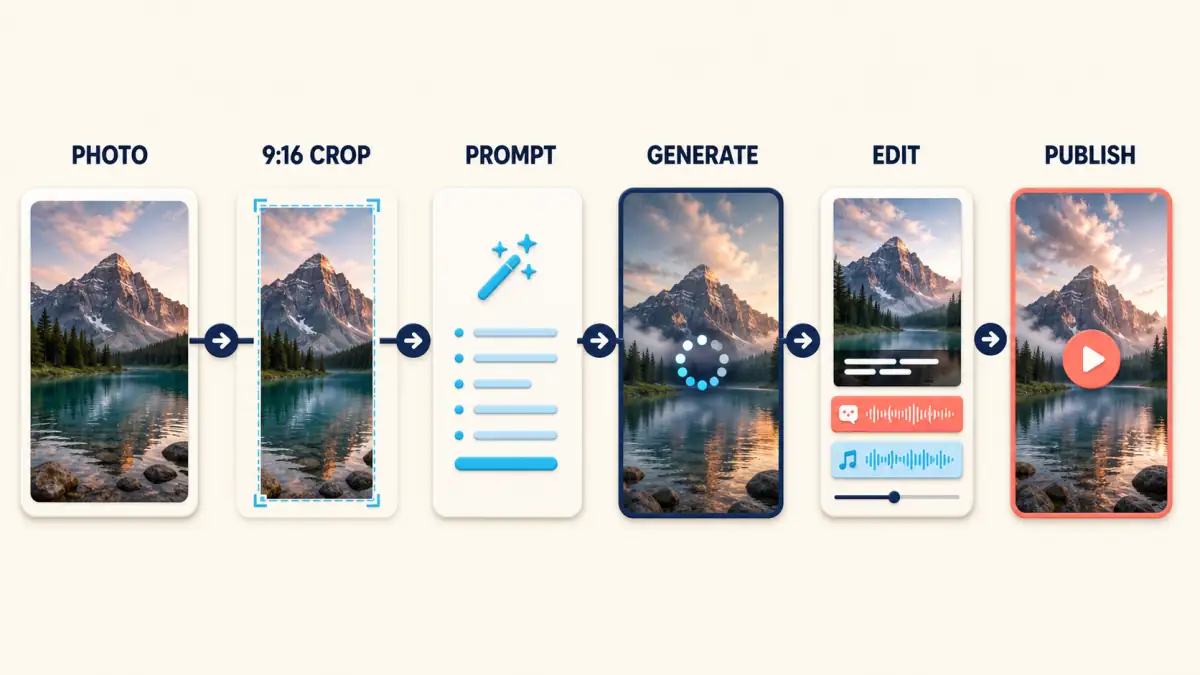
Step-by-Step One-Photo-to-TikTok Workflow
Treat the AI output as a clean source shot. The finished TikTok still needs framing, timing, text, sound, and a final publishing check.
Step 1: Choose a Photo That Can Survive a 9:16 Crop
Start with the highest-quality version of the image you own or have permission to use. A compressed social thumbnail gives the model fewer facial, material, and edge details to preserve.
Before uploading, preview a vertical crop and ask:
- Does the main subject remain large enough to understand on a phone?
- Are the face, hands, product, or landmark completely visible?
- Is there clean space for a short caption?
- Will TikTok's controls cover anything important near the screen edge?
- Does the model have to invent most of the background to fill the frame?
If the original is horizontal, do not blindly crop the center. Reposition the subject or extend the background before animation when necessary. For a portrait, preserve the top of the head and enough shoulder context. For a product, protect the full package silhouette and label. For a landscape, choose a vertical focal point instead of trying to retain every object from the wide scene.
Step 2: Plan the First Two Seconds
The opening needs a visual reason to continue watching. With one photo, that reason should be simple enough to read almost immediately.
Useful hook patterns include:
- Static-to-motion: the photo holds for a fraction of a second, then the eyes, hair, steam, water, or light begins to move.
- Detail reveal: a push-in moves toward a product texture, facial expression, food detail, or artwork element.
- Atmosphere change: rain starts, neon light turns on, fog moves, or sunlight crosses the scene.
- Question and reveal: an editor adds a short question over the original frame, then the animation supplies the visual answer.
- Before and after: the still image appears first, followed by the animated result in the same vertical frame.
Do not make the model generate a long blank lead-in so you can add a title later. Create motion early and add the title over the shot during editing. If a clip will be part of a longer post, it can serve as the opening hook, a transition, or visual B-roll rather than the entire story.
Step 3: Write One Motion and One Camera Move
Use this prompt structure:
Create a [5-8]-second vertical 9:16 clip from this photo.
In the first two seconds, [visible hook motion].
The subject [one small action] while the camera [one camera movement].
[Lighting, atmosphere, and visual style].
Keep [identity, product, composition, or art style] unchanged.
Leave uncluttered visual space for a short caption.
No cuts, no warping, no extra objects, no text changes.
“Cinematic motion” is not a shot direction. Choose a specific move such as a slow push-in, gentle pull-back, small pan, slight tilt, or nearly locked-off camera. If you are unsure which move fits the image, choose one camera move that the source image can support before adding stronger subject action.
Avoid combining an orbit, zoom, handheld shake, dramatic body movement, changing weather, and background transformation in one prompt. Each additional request gives the model another opportunity to rewrite the source.
Step 4: Generate a Short 9:16 Draft
Select image-to-video mode, upload the prepared photo, and choose 9:16 if the selected model exposes an aspect-ratio setting. Not every model handles aspect ratio in the same way, so check the preview rather than assuming that a vertical label guarantees good composition.
Keep the first test controlled:
- Use the shortest duration that can show the idea.
- Keep motion strength conservative.
- Generate one clear shot rather than several scenes.
- Do not add AI-generated text to the image.
- Change only one major variable between retries.
If the first result is stable but too quiet, increase either the subject motion or camera movement slightly. Do not increase both at once. If it is unstable, shorten the clip, reduce the action, or switch to a locked-off or slow push-in shot before changing models.
Step 5: Review the Result Frame by Frame
Watch the clip once at normal speed for impact, once without sound for clarity, and once slowly for defects.
Check whether:
- The first visible change happens early enough.
- The face remains the same person throughout.
- Hands, teeth, eyes, hair, and clothing remain plausible.
- Product shape, label, logo area, material, and color stay accurate.
- Background lines, horizons, shelves, and architecture remain stable.
- No new text, objects, people, or product features appear.
- The last frame is clean enough to hold, loop, or transition.
For a product or real person, visual accuracy matters more than spectacle. Reject an attractive result if it changes what the product looks like or portrays a person doing something you cannot responsibly publish.
Step 6: Add Captions, Sound, and a Closing Beat
Add platform elements after the visual generation is stable. Editing text separately keeps it readable and makes it easy to test several hooks without paying to regenerate the video.
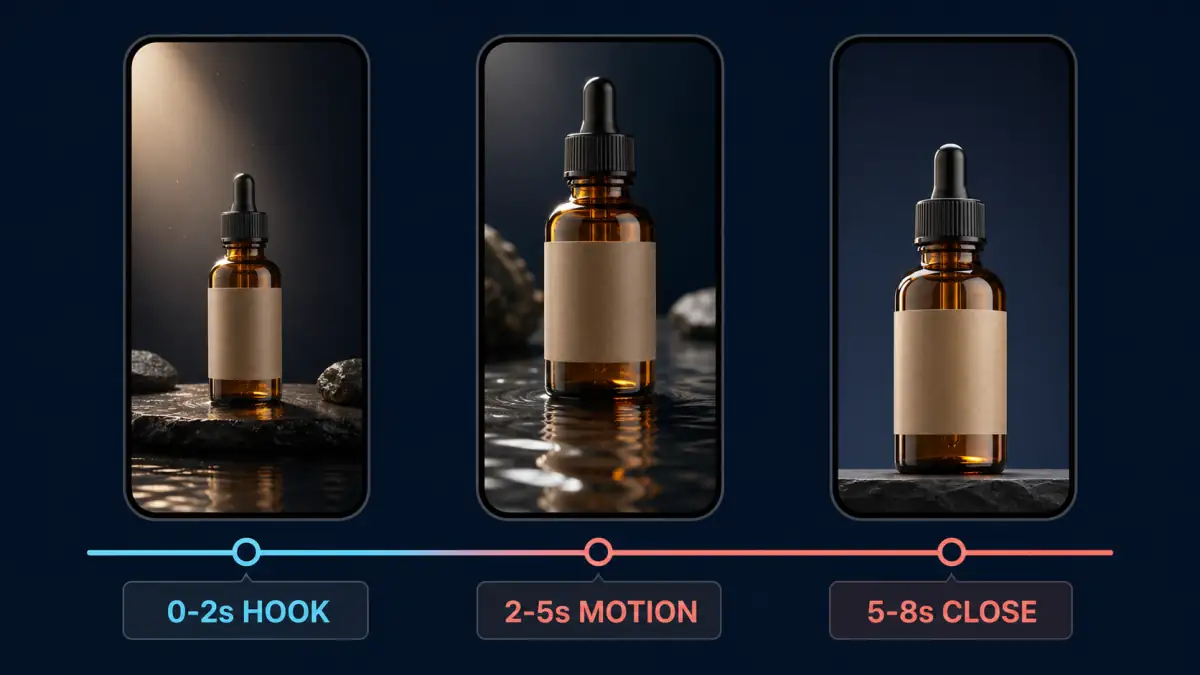
A simple 5-8 second structure can look like this:
| Moment | Job | Visual | Editing layer |
|---|---|---|---|
| 0-2 seconds | Hook | Immediate expression, detail, light, or atmosphere change | Short question, claim, or context line |
| 2-5 seconds | Body | Continue one controlled motion | Caption, voiceover, or product benefit |
| 5-8 seconds | Close | Hold the subject or complete a clean movement | CTA, reveal, loop point, or next-shot transition |
Choose music, voiceover, or sound effects that support the visual change. A soft camera push-in may need a calm voiceover; a product light sweep may work with a beat accent; steam or rain may benefit from subtle environmental sound. Use music you are allowed to publish, especially for brand or commercial content.
Copy-Paste Prompts for TikTok Clips
Replace the bracketed details, then adjust only one motion variable after reviewing the first result.
Portrait Expression Hook
Create a 6-second vertical 9:16 clip from this portrait. In the first two seconds, the person makes one natural blink and gently looks toward the camera. The camera performs a very slow push-in. Soft window light moves subtly across the face. Keep the same identity, facial proportions, age, hairstyle, clothing, and background. Leave clean space above the shoulders for a short caption. No face morphing, no exaggerated smile, no talking, no extra teeth, no cuts.Product Detail Reveal
Create a 6-second vertical 9:16 product hook from this photo. In the first two seconds, a soft light sweep reveals the product material while the camera begins a slow push-in. Keep the product shape, label area, logo placement, color, packaging, and surface unchanged. Leave uncluttered space above the product for caption text. No spinning, no new text, no extra products, no melting, no label changes, no cuts.Food or Drink Close-Up
Create a 5-second vertical 9:16 food clip from this image. Steam begins rising immediately while the camera makes a gentle macro push-in toward the main dish. Warm natural restaurant light, realistic texture, shallow depth of field. Keep the dish, ingredients, plate, table, and colors unchanged. No new ingredients, no moving utensils, no warped plate, no text, no cuts.Artwork or Anime Animation
Create a 6-second vertical 9:16 animation from this artwork. In the first two seconds, the character's hair and clothing move slightly in a soft breeze while small background particles drift. The camera remains almost locked with a tiny push-in. Preserve the exact character design, face, outfit, colors, linework, shading, and art style. No redesign, no extra limbs, no new characters, no background replacement, no cuts.Travel or Lifestyle Atmosphere
Create a 7-second vertical 9:16 travel clip from this photo. Clouds and nearby foliage begin moving gently in the first two seconds while the camera performs a slow controlled pan toward the main landmark. Preserve the building shapes, horizon, geography, people, and color palette. Leave open sky for a short caption. No bent architecture, no changing weather, no new people, no camera shake, no cuts.These prompts deliberately avoid generated titles, subtitles, prices, and logos. Add those after generation so the text remains accurate and editable.
TikTok-Ready Export and Editing Checklist
TikTok's creative best-practice guidance recommends 9:16 vertical video, at least 720p resolution, sound, and keeping content visible inside the UI safe zone. Treat that guidance as a quality baseline, then check the actual post preview because interface elements and placements can change.
| Check | Practical target | Why it matters |
|---|---|---|
| Aspect ratio | 9:16 vertical | Uses the full mobile canvas instead of letterboxing a landscape clip |
| Resolution | At least 720p; use a higher clean export when available | Prevents a sharp source image from becoming a soft upload |
| Subject placement | Keep the face, product, and action away from crowded edges | Reduces overlap with platform controls and captions |
| Hook | A readable visual change within the opening two seconds | Prevents the one-photo clip from feeling like a static hold |
| Captions | Large, brief, high-contrast, and manually reviewed | Helps viewers understand the post without relying only on audio |
| Sound | Music, voiceover, or effects with publishing rights | Makes the movement feel intentional and platform-native |
| Final frame | Clean hold, loop, reveal, or transition | Gives the short clip a purpose beyond random motion |
| File | Clean MP4 export without accidental editor watermarks | Avoids unnecessary recompression and distracting marks |
| Disclosure | Review the current AI-generated content setting | Adds the context required for applicable realistic AIGC |
Preview the post inside TikTok before publishing. A caption that looked centered in an editor may sit behind the account name, description, audio information, or interaction controls after upload.
Common Problems and Fixes
| Problem | Likely cause | Better fix |
|---|---|---|
| Subject is too small in 9:16 | A wide photo was placed inside a vertical canvas without reframing | Crop around one focal subject or extend the background before generation |
| Nothing happens in the opening | The prompt describes mood but no visible action | Name one motion that begins immediately, such as a blink, light sweep, or steam |
| Face changes near the end | Action, duration, or camera angle asks the model to invent facial information | Shorten the clip, reduce expression, and use a locked-off shot or slow push-in |
| Product label or shape changes | Rotation or dramatic motion exposes unseen product details | Keep the product still and move light, reflections, or the camera slightly |
| Background bends or drifts | Pan, orbit, and subject motion are competing | Use one camera move and add constraints for the horizon, walls, or architecture |
| AI-generated text is unreadable | The video model is rendering typography across moving frames | Generate without text and add captions in an editor |
| Caption is covered by the interface | Text was placed at the extreme edge of the frame | Move essential text and subjects into a more conservative central safe area |
| Clip moves but still feels dull | Motion has no narrative job | Connect the movement to a reveal, question, product benefit, memory, or transition |
| Music and animation feel disconnected | The movement does not land on an audible beat or phrase | Retiming the clip is usually easier than regenerating a stable visual |
Fix the earliest failure first. A stronger caption cannot rescue a distorted face, and perfect sound design cannot make an inaccurate product video safe to publish.
Posting AI-Generated Video Responsibly
Use a photo you created, licensed, or have permission to animate. If it shows a real person, consider whether they agreed not only to the photo but also to the new action created by AI. A small blink is still a synthetic portrayal; dancing, speaking, endorsing a product, or appearing in a fictional event carries much greater risk.
TikTok's current AI-generated content guidance requires creators to label realistic AI-generated images, audio, and video and encourages disclosure when content is completely generated or significantly edited by AI. TikTok also says enabling the creator AI-generated label does not affect distribution as long as the content follows its guidelines. Review the current rule when publishing because platform policies can change.
Transparency is only part of responsible publishing. A label does not make impersonation, misleading claims, unlicensed artwork, or deceptive product changes acceptable. Keep these checks in the workflow:
- Do not imply that a real person said, did, or endorsed something without permission.
- Do not animate a private person's image for a public post without considering consent.
- Do not use synthetic product motion to show a feature the real item does not have.
- Do not remove provenance information or attempt to evade an applicable AI label.
- Add original context through your story, commentary, demonstration, editing, or experience.
That last point matters more as AI video becomes common. In a July 2026 transparency update, TikTok said it was testing improved detection aimed at accounts dedicated to AI-generated spam that crowds out original creators. Use AI as a motion layer for something you genuinely want to communicate, not as a substitute for a point of view.
FAQ
Can I turn one photo into a TikTok video with AI?
Yes. Upload a clear photo to an image-to-video generator, choose a vertical output when available, describe one small action and one camera move, and generate a short draft. Add accurate text and sound afterward. The result works best as a hook, visual story beat, product detail, reveal, or piece of B-roll rather than an automatically complete TikTok strategy.
What aspect ratio should an AI TikTok video use?
Use 9:16 for a full-screen vertical TikTok clip. Keep the main subject and essential text away from areas likely to be covered by the interface. TikTok's creative guidance recommends at least 720p; export a higher clean resolution when your source and workflow support it.
How long should a one-photo TikTok clip be?
Start with 5-8 seconds. That is long enough to show one hook and controlled movement while reducing the amount of new visual information the AI must invent. You can repeat, retime, or combine that shot with other footage in a longer post. It is not a TikTok duration limit.
Can I use a landscape photo for a 9:16 TikTok video?
Yes, but decide what the vertical frame is about. Crop around one subject, reposition it, or extend the background before animation. Avoid shrinking the entire landscape into the center of a vertical canvas, because the resulting subject may be too small to read on a phone.
How do I stop a face or product from changing?
Use a sharp source image, keep the first clip short, request restrained motion, choose one camera move, and state exactly what must stay unchanged. For a face, protect identity, proportions, hair, age, and clothing. For a product, protect shape, label area, logo placement, color, material, and packaging.
Should I add TikTok text and music during AI generation?
Usually not. Generate a clean visual shot first. Then add captions, music, voiceover, effects, and calls to action in TikTok or a video editor. This keeps typography readable, gives you control over safe-zone placement, and lets you test several hooks without regenerating the video.
Do I need to label an AI-generated TikTok video?
TikTok requires labeling for realistic AI-generated content and encourages disclosure for content that is fully generated or significantly edited with AI. Check the current policy and enable the platform's AI-generated content setting when it applies. A disclosure does not replace the need for consent, accuracy, copyright review, and compliance with the rest of TikTok's rules.
Create Your First 9:16 Clip
The most useful one-photo TikTok workflow is deliberately small: one vertical composition, one visual hook, one subject action, one camera move, and one clean closing beat.
Generate the restrained version first. If the subject stays accurate, test a stronger hook, a different caption, or new sound without changing everything at once. A stable five-second shot with a clear idea is more valuable than a dramatic clip that no longer looks like the person, product, artwork, or place you started with.